Who should use this article?
All Food Safety Program users responsible for recording food safety temperatures.
Overview
The Temperature Log tab is used to record food safety temperatures across equipment, meal service, cold food preparation and cooling activities.
Temperature Logs support manual entry and provide a record of food safety monitoring activities.
Note: Integration with automated data loggers is currently under development. Temperature records are currently entered manually.
Understanding Temperature Logs
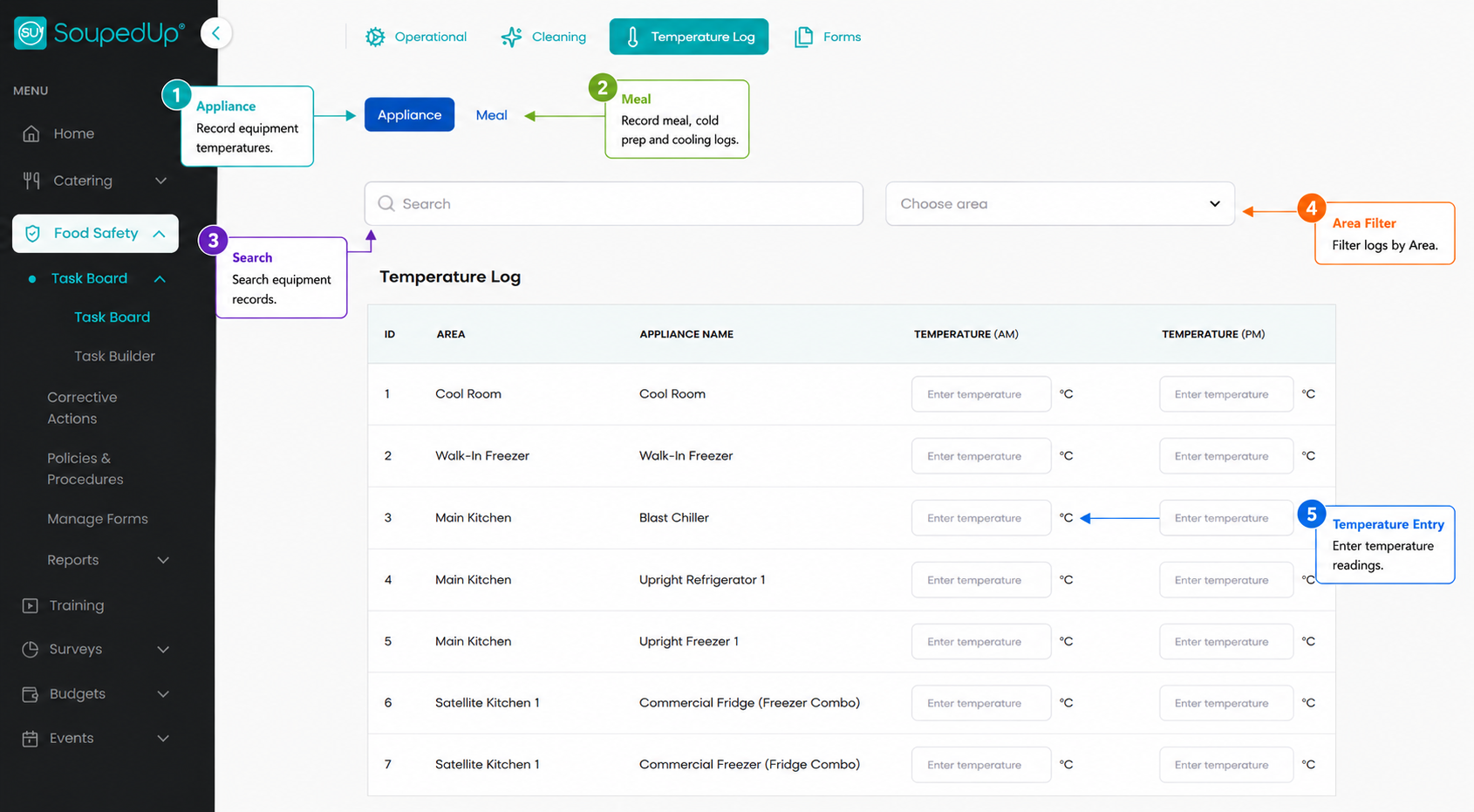
Key Features
| Feature | Description |
|---|---|
| Appliance | Record equipment temperatures such as fridges, freezers, cool rooms and blast chillers. |
| Meal | Access Meal Temperature, Cold Preparation and Cooling logs. |
| Search | Search equipment records. |
| Area Filter | Filter temperature logs by Area. |
| Temperature Entry | Enter required temperature readings. |
Recording Appliance Temperatures
The Appliance tab is used to record temperatures for equipment configured within the Food Safety Program.
Examples include:
- Cool Rooms
- Fridges
- Freezers
- Blast Chillers
To Record Appliance Temperatures
- Navigate to Temperature Log.
- Ensure Appliance is selected.
- Locate the required equipment.
- Enter the required temperature reading.
- Repeat for additional equipment.
- Select Save Logs.
Automatic Corrective Actions
Important: If a fridge, freezer or cool room temperature is recorded outside the configured temperature limits, the Food Safety Program will automatically generate a Corrective Action. Users will be prompted to record the issue, actions taken and any supporting evidence before continuing.
Important
At this time, equipment such as:
- Bain-Maries
- Hot Boxes
- Dishwasher Rinse Temperatures
are generally configured as Operational Tasks rather than Appliance Temperature Logs.
Recording Food Temperature Logs
The Meal tab contains several food temperature monitoring logs used throughout the food preparation and service process.
Depending on your site's configuration, this may include:
- Meal Temperatures
- Cold Preparation Logs
- Cooling Logs
Recording Food Temperature Logs
The Meal tab contains several food temperature monitoring logs used throughout the food preparation and service process.
Depending on your site's configuration, this may include:
- Meal Temperatures
- Cold Preparation Logs
- Cooling Logs
Recording Meal Temperatures
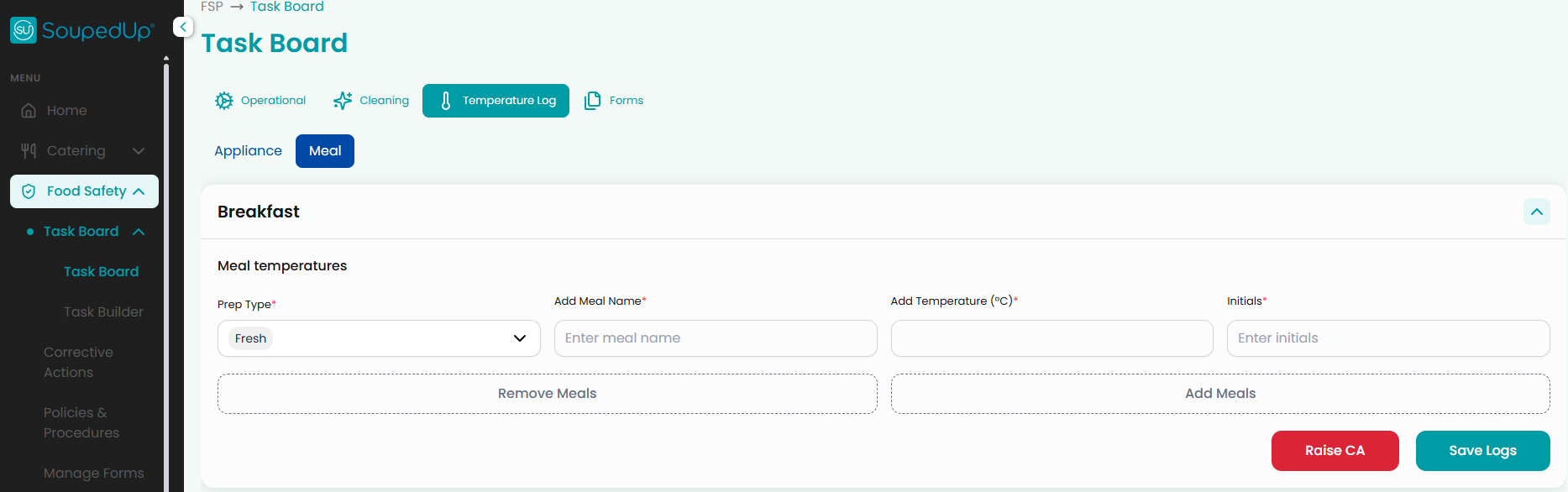
The Meal Temperature section is used to record food service temperatures during meal periods.
Separate sections may be configured for:
- Breakfast
- Lunch
- Dinner
To Record Meal Temperatures
- Expand the required meal period.
- Select the preparation type.
- Enter the meal name.
- Enter the temperature.
- Enter your initials.
- Select Add Meals if additional items need to be recorded.
- Select Save Logs.
Important: Temperature Logs do not automatically save entries as they are entered. Always select Save Logs before leaving the page. Navigating away from the screen, refreshing the page, or closing your browser before saving may result in the loss of any unsaved temperature records.
Recording Cold Preparation Activities
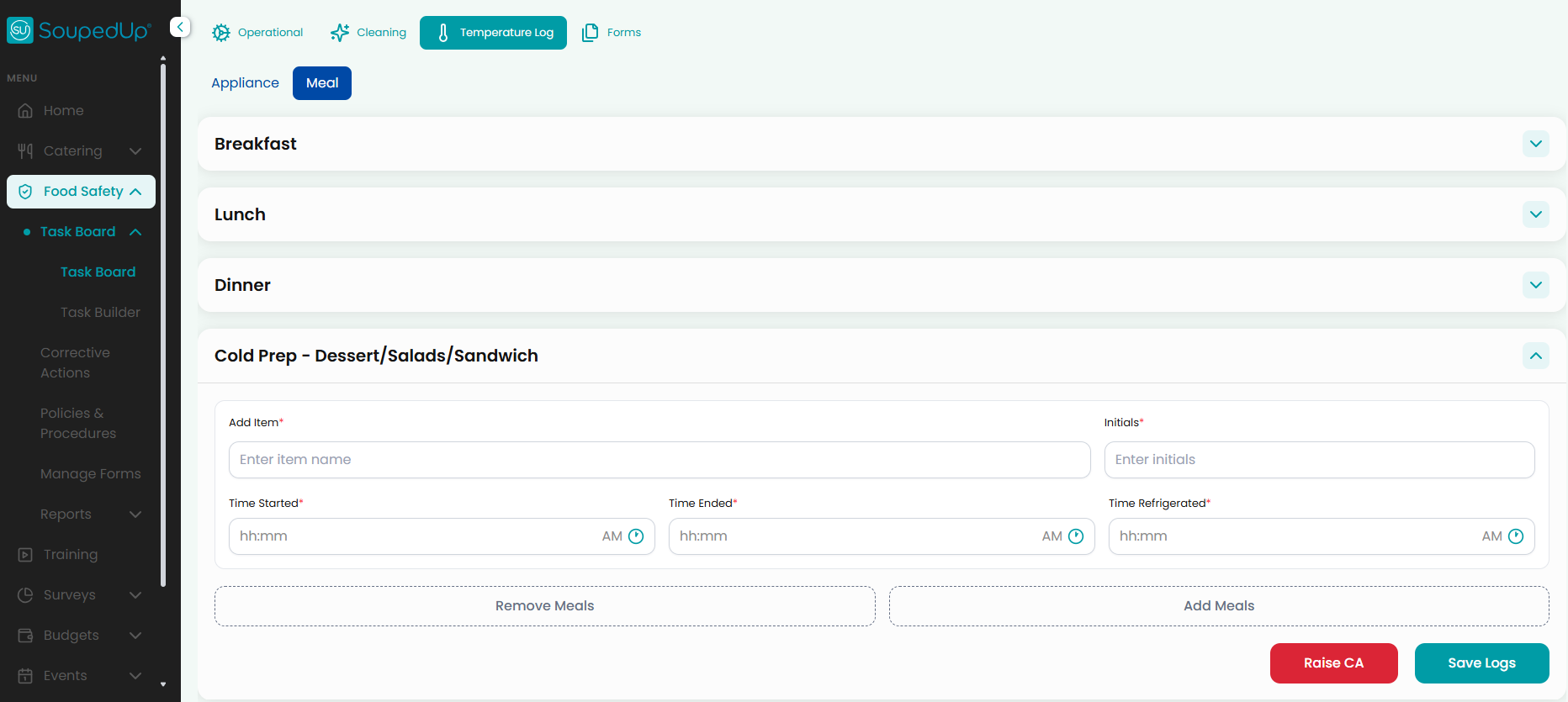
The Cold Prep section is used to monitor preparation activities for ready-to-eat foods.
Examples include:
- Sandwiches
- Salads
- Desserts
- Fruit Preparation
To Record Cold Preparation Activities
- Expand the Cold Prep section.
- Enter the item name.
- Enter your initials.
- Record:
- Time Started
- Time Ended
- Time Refrigerated
- Add additional items if required.
- Select Save Logs.
Recording Cooling Activities
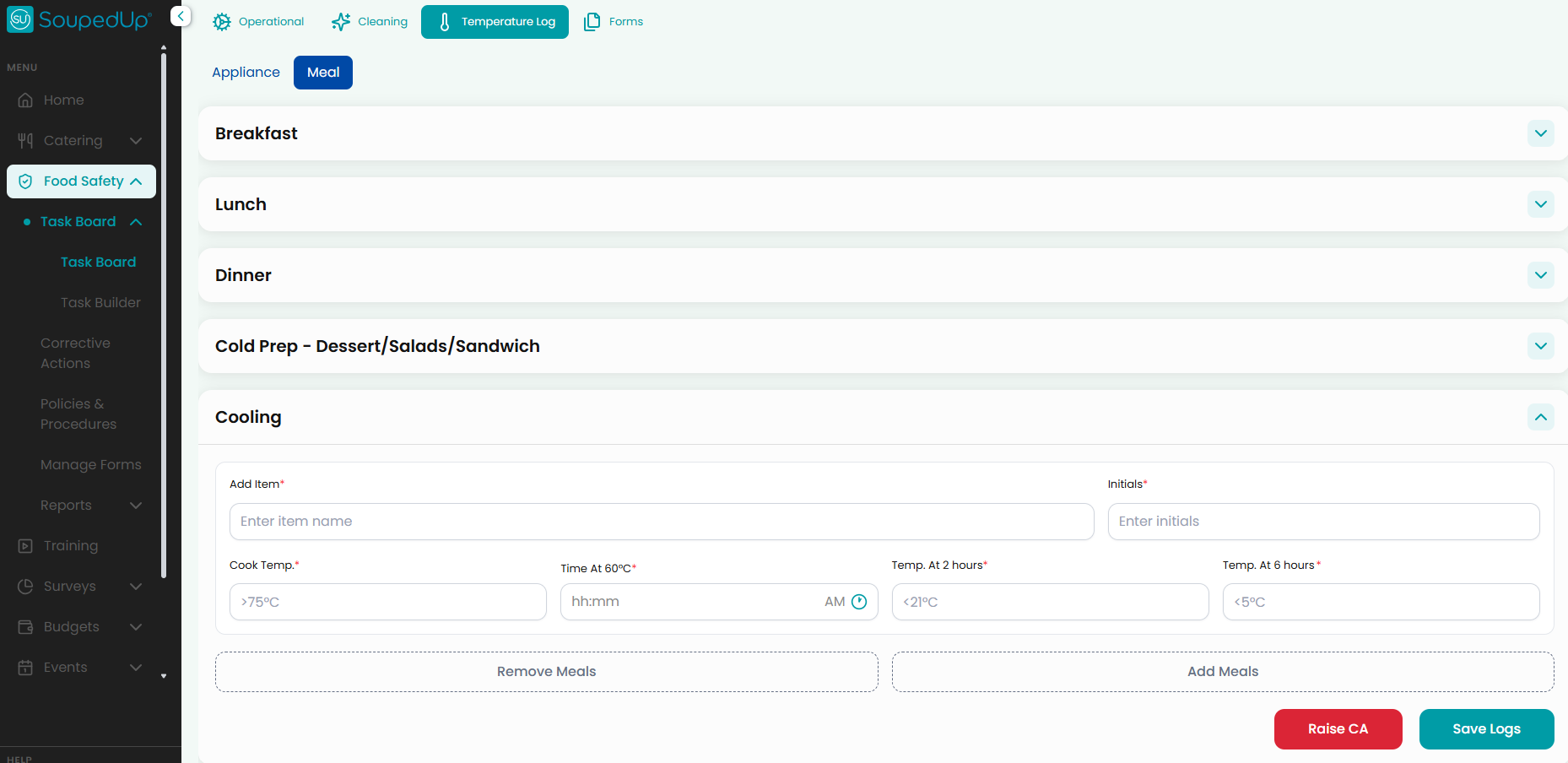
The Cooling section is used to verify foods are cooled safely before storage.
To Record Cooling Activities
- Expand the Cooling section.
- Enter the item name.
- Enter your initials.
- Record:
- Cooking Temperature
- Time at 60°C
- Temperature at 2 Hours
- Temperature at 6 Hours
- Add additional items if required.
- Select Save Logs.
Out-of-Range Temperatures
If a temperature falls outside the required range, a Corrective Action may be required.
Corrective Actions can be raised directly from the Temperature Log screen using the Raise CA button.
For more information, see:
Understanding Corrective Actions
Result
Temperature monitoring activities are recorded and stored within the Food Safety Program for operational monitoring, compliance reporting and audit evidence.
Good to Know
- Appliance temperatures are entered manually.
- Meal, Cold Prep and Cooling logs are all accessed through the Meal tab.
- Multiple entries can be recorded before saving.
- Additional food items can be added using Add Meals.
- Corrective Actions can be raised directly from Temperature Logs when required.
- Some equipment temperatures may be configured as Operational Tasks rather than Temperature Logs.
Related Articles
- Understanding the Task Board
- Complete a Task
- Understanding Corrective Actions
- Checking Task Reports
- Checking Temperature Reports
- Audit Evidence
Was this article helpful?
That’s Great!
Thank you for your feedback
Sorry! We couldn't be helpful
Thank you for your feedback
Feedback sent
We appreciate your effort and will try to fix the article