Who Should Use This Article?
This article is intended for Site Users responsible for completing Food Safety tasks and recording food safety issues within the Food Safety Program.
Typical users include:
- Food Service Assistants (FSAs)
- Kitchen Hands
- Chefs and Cooks
- Food Safety Supervisors
- Site Managers
Head Office Administrators may also use this article when supporting sites or reviewing Corrective Action processes.
Overview
Corrective Actions are used to record food safety issues, incidents or non-conformances identified during daily operations.
Corrective Actions provide a documented record of:
- What issue occurred
- What action was taken
- Who recorded the issue
- Supporting evidence such as photographs
- Whether the issue has been resolved
Corrective Actions become part of the Food Safety Program and may be used for compliance reporting, operational review and audit evidence.
When to Raise a Corrective Action
A Corrective Action should be raised whenever a food safety issue, hazard or non-conformance is identified.
Examples include:
- Equipment not operating correctly
- Cleaning tasks not completed
- Pest activity identified
- Food stored incorrectly
- Labelling issues
- Temperature breaches
- Any task that cannot be completed as required
How Corrective Actions Can be Raised
Corrective Actions can be created in several ways throughout the Food Safety Program.
Users can raise a Corrective Action:
• Directly from an Operational Task
• Directly from a Cleaning Task
• From Board View using the hazard button displayed on a task card
• From the Corrective Actions register
• Automatically when configured appliance temperature limits are exceeded
Corrective Actions should be raised whenever a food safety issue, non-conformance, incident or potential risk is identified.
Examples include:
• Equipment faults or breakdowns
• Pest activity
• Food storage issues
• Cleaning failures
• Temperature breaches
• Damaged equipment
• Audit findings
• Any issue requiring investigation or follow-up action
Corrective Actions do not need to be linked to a task or form and can be raised directly from the Corrective Actions register when required.
Raise a Corrective Action from a Task
List View
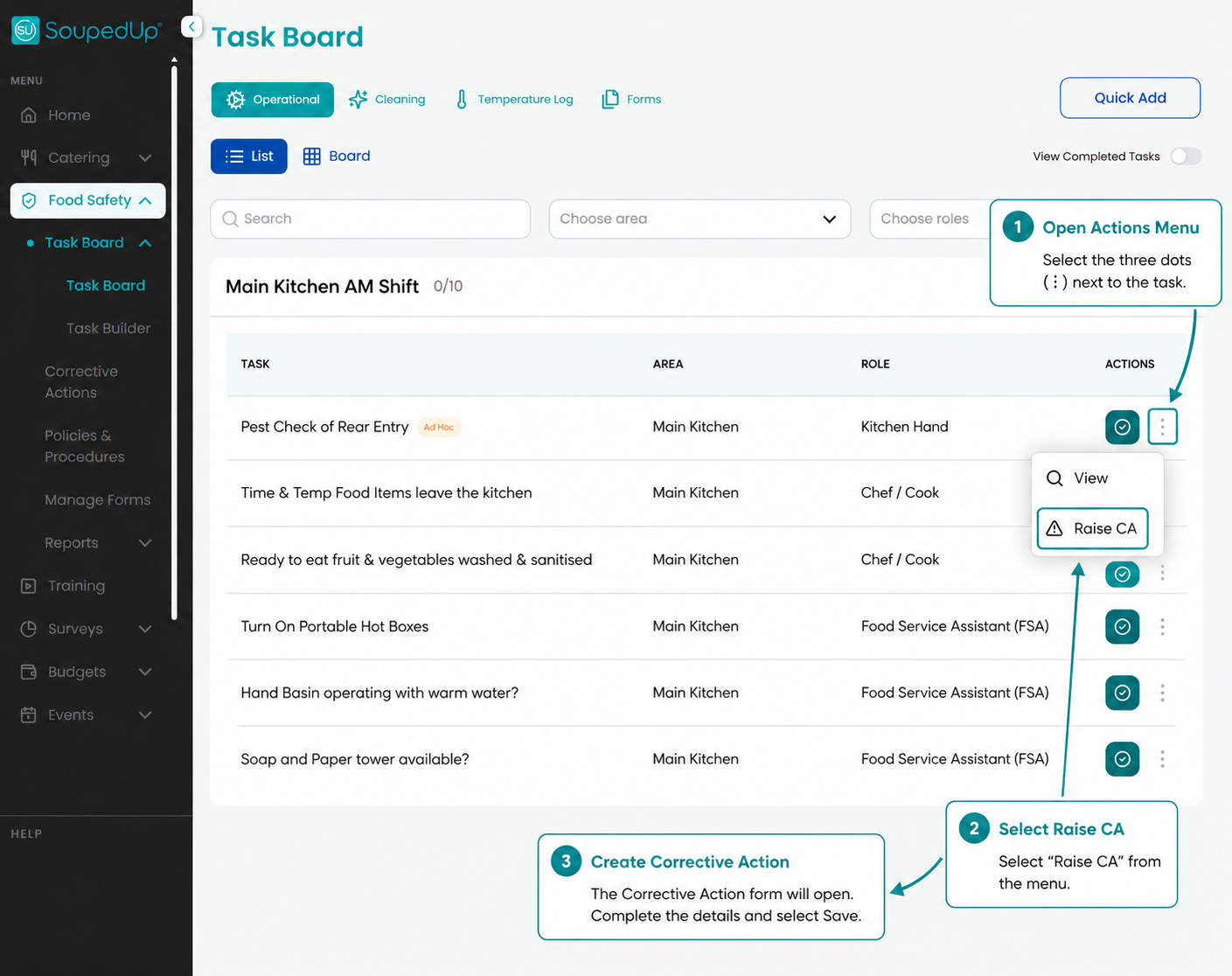
To raise a Corrective Action from List View:
- Locate the relevant task.
- Select the three dots (Actions Menu).
- Select Raise CA.
- Complete the Corrective Action form.
- Select Save.
Board View
If you are using Board View, select the red hazard button displayed on the task tile.
The same Corrective Action form will open.
Good to Know
Corrective Actions can be raised from both List View and Board View. Regardless of which method is used, the same Corrective Action form will be displayed.
Complete the Corrective Action Form
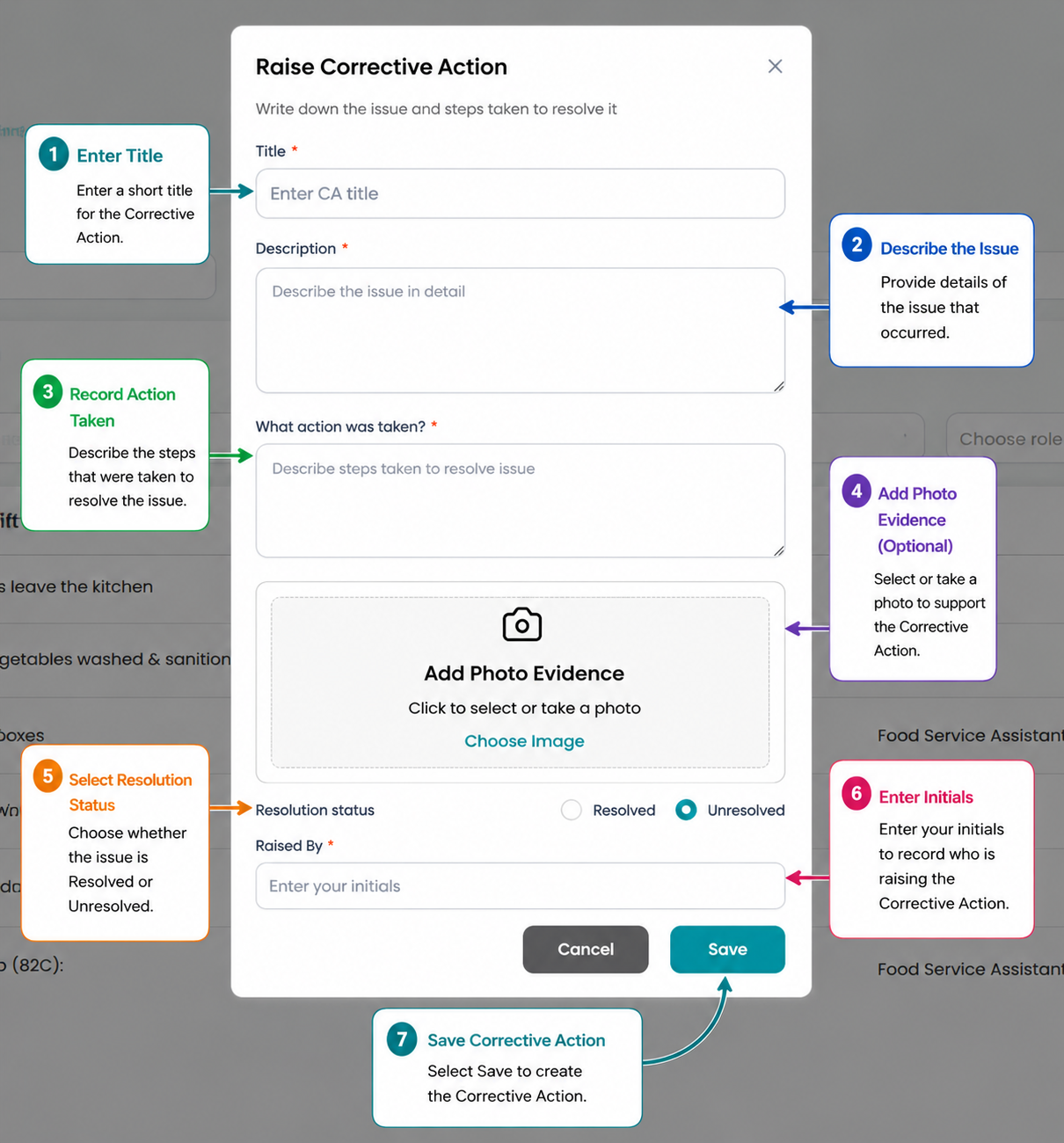
Complete the following fields:
| Field | Description |
|---|---|
| Title | Enter a short title describing the issue. |
| Description | Describe the issue or non-conformance identified. |
| What Action Was Taken? | Record the steps taken to address or resolve the issue. |
| Photo Evidence | Upload or capture a photo to support the Corrective Action (optional). |
| Resolution Status | Select whether the issue is Resolved or Unresolved. |
| Raised By | Enter your initials. |
Once complete, select Save.
Automatic Corrective Actions for Temperature Breaches
Certain Appliance Temperature Logs have configured temperature limits.
If an out-of-range temperature is entered for equipment such as:
- Refrigerators
- Freezers
- Cool Rooms
- Other configured equipment
the Food Safety Program will automatically prompt the user to complete a Corrective Action.
Users must record the issue and actions taken before continuing.
Important
Temperature breaches should always include details of any actions taken to protect food safety, such as relocating food, adjusting equipment settings or notifying management.
Result
The Corrective Action is recorded within the Food Safety Program and becomes available for operational review, reporting and audit evidence.
Good to Know
- Corrective Actions can be raised from both List View and Board View.
- Corrective Actions can also be raised directly from the Corrective Actions register.
- Photo evidence can be attached when required.
- Corrective Actions can be marked as Resolved or Unresolved.
- Appliance temperature breaches may automatically trigger a Corrective Action.
- Corrective Actions do not need to be linked to a task or form.
- Corrective Actions can be updated as investigations progress.
- Additional notes and updates can be recorded in the What Action Was Taken field.
- Corrective Actions are retained as part of the site's Food Safety records and may be used as audit evidence.
Related Articles
Was this article helpful?
That’s Great!
Thank you for your feedback
Sorry! We couldn't be helpful
Thank you for your feedback
Feedback sent
We appreciate your effort and will try to fix the article