Who should use this article?
All Food Safety Program users.
Overview
Tasks are completed from the Task Board and may be configured differently depending on your organisation's requirements.
Some tasks may only require confirmation that the activity has been completed, while others may require additional information such as initials, time or temperature readings.
Complete a Task
Navigate to the required task within the Task Board.
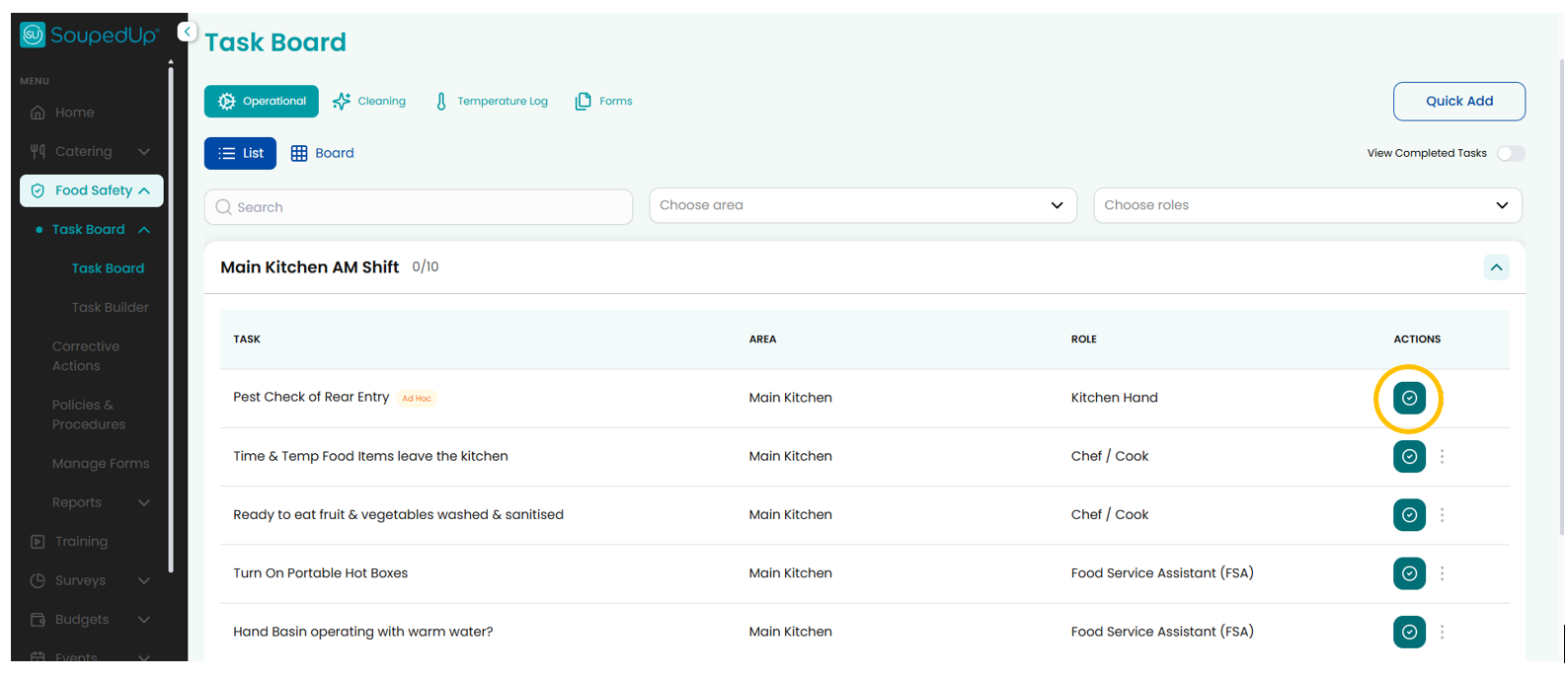
Step 1 - Select Complete
Select the green Complete button against the required task.
The completion screen will display any information required for that task.
Step 2 - Complete Required Fields
Depending on how the task has been configured, you may be required to enter one or more of the following:
Initials
Enter your initials to confirm who completed the task.
Time
Enter the time the activity was completed.
Temperature
Enter the required temperature reading.
Temperature fields are commonly used for food safety monitoring activities.
Step 3 - Submit the Task
Once all required fields have been completed, select Save.
The task will be recorded as completed.
Examples
Example 1 - Simple Completion
Some tasks only require confirmation that the activity has been completed.
Example:
- Check Food Labels
- Inspect Hand Basin
Action Required:
✓ Select Complete
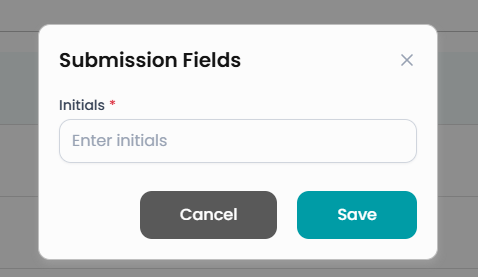
Example 2 - Initials Required
Some tasks require the user to identify who completed the activity.
Action Required:
✓ Select Complete
✓ Enter Initials
✓ Press Save
Example 3 - Initials and Time Required
Some tasks require both user identification and completion time.
Action Required:
✓ Select Complete
✓ Enter Initials
✓ Enter Time
✓ Press Save
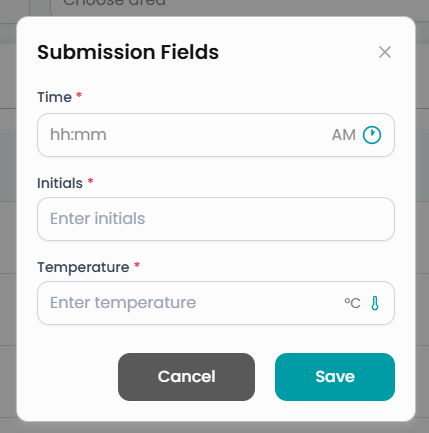
Example 4 - Initials, Time and Temperature Required
Some food safety tasks require a temperature reading in addition to user identification and completion time.
Action Required:
✓ Select Complete
✓ Enter Initials
✓ Enter Time
✓ Enter Temperature
✓ Press Save
Corrective Actions
If an issue is identified while completing a task, a Corrective Action can be raised.
Corrective Actions can be created by:
- Selecting the kebab menu (three dots) next to the task in List View.
- Selecting the red hazard icon in Board View.
For more information, refer to:
Understanding Corrective Actions
Result
The completed task is recorded within the Food Safety Program and becomes available for reporting and audit purposes.
Good to Know
Tasks may be configured differently between sites and organisations.
Only complete the fields displayed for the task you are performing.
Not all tasks require initials, time or temperature readings.
Related Articles
Was this article helpful?
That’s Great!
Thank you for your feedback
Sorry! We couldn't be helpful
Thank you for your feedback
Feedback sent
We appreciate your effort and will try to fix the article