Who Should Use This Article?
This article is for Head Office Administrators responsible for creating and managing Policies and Procedures within the Food Safety Module.
Permissions Required: Head Office access with permission to create and manage Policies and Procedures.
Overview
Policies and Procedures provide a central library of organisational documentation that can be assigned to one or more sites within the Food Safety Module.
Policies and Procedures are created and managed at Head Office level only. Once assigned, they become view-only for Site Administrators and general users, ensuring all locations access the same approved version.
Both Policies and Procedures are created using the Create Policy button within the Policies & Procedures section of the Food Safety Module.
Before You Begin
Before creating a Policy or Procedure, ensure you have:
- A clear policy title.
- The policy content or supporting document ready.
- Effective and review dates available.
- Determined whether the system will generate the policy number automatically or whether your organisation uses its own numbering convention.
- Identified which sites will require access to the completed document.
Step 1 – Open Policies & Procedures
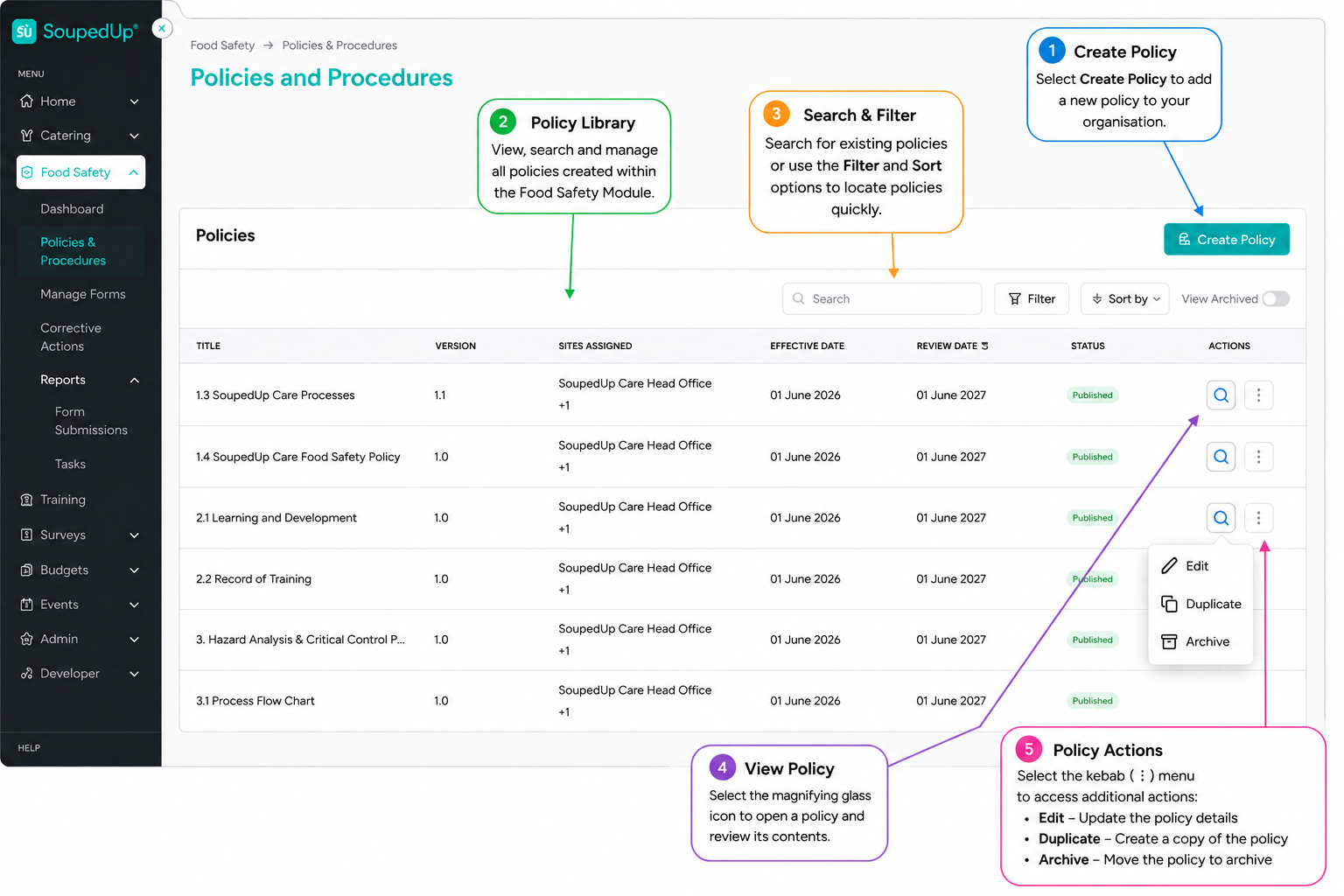
From the Food Safety navigation menu select:
Food Safety → Policies & Procedures
The Policies & Procedures page displays all policies currently available within your organisation.
Step 2 – Create a New Policy or Procedure
Select Create Policy.
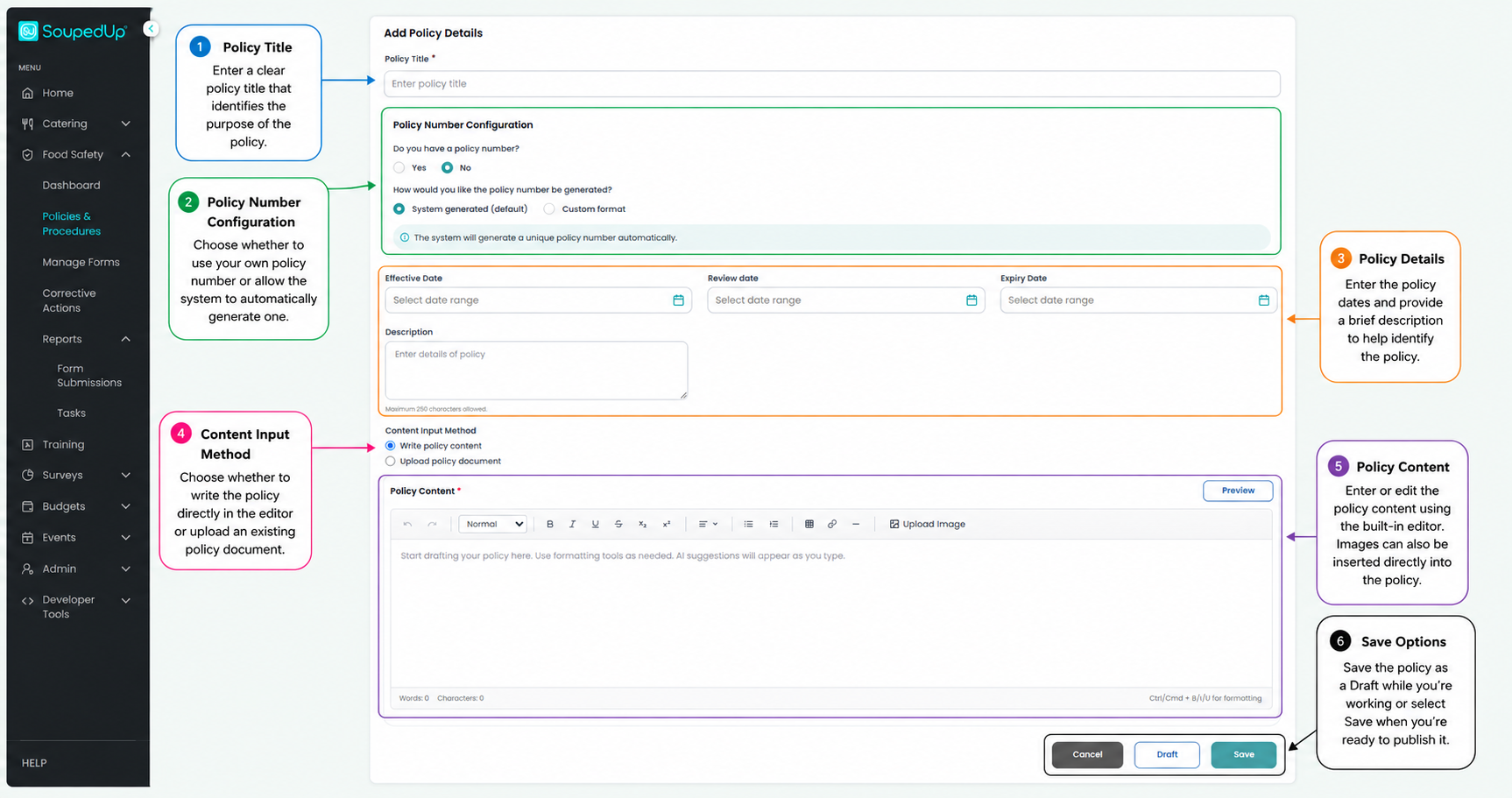
The Create Policy screen opens allowing you to enter the policy information.
Complete the following information:
- Policy Title
- Policy Number Configuration
- Effective Date
- Review Date
- Expiry Date (if required)
- Description
Choose whether you want to:
- Write the policy directly within the editor, or
- Upload an existing policy document.
Step 3 – Build the Policy
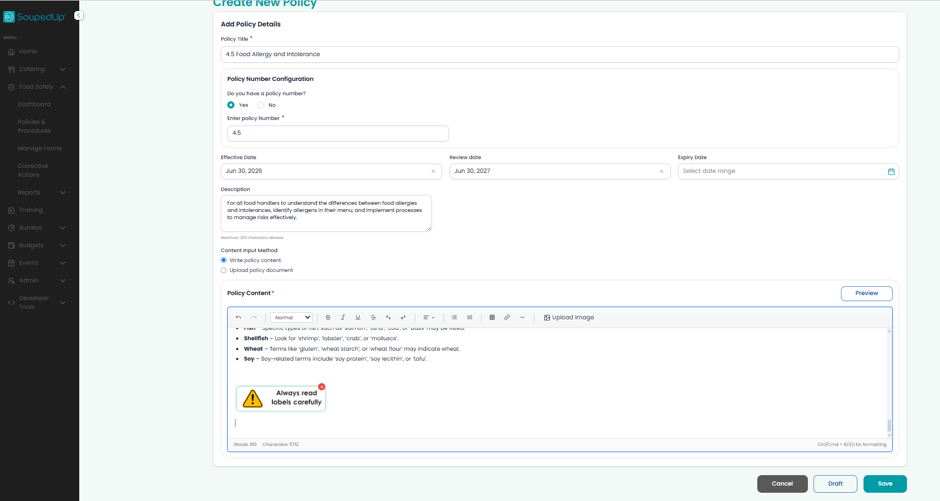
Complete the Policy Content using the built-in editor.
The editor supports standard formatting including:
- Headings
- Bullet lists
- Numbered lists
- Tables
- Hyperlinks
- Images
Images can be inserted directly into the policy to improve readability and support work instructions.
Save the policy as a Draft if it is not yet complete, or select Save when finished.
Step 4 – Assign the Policy
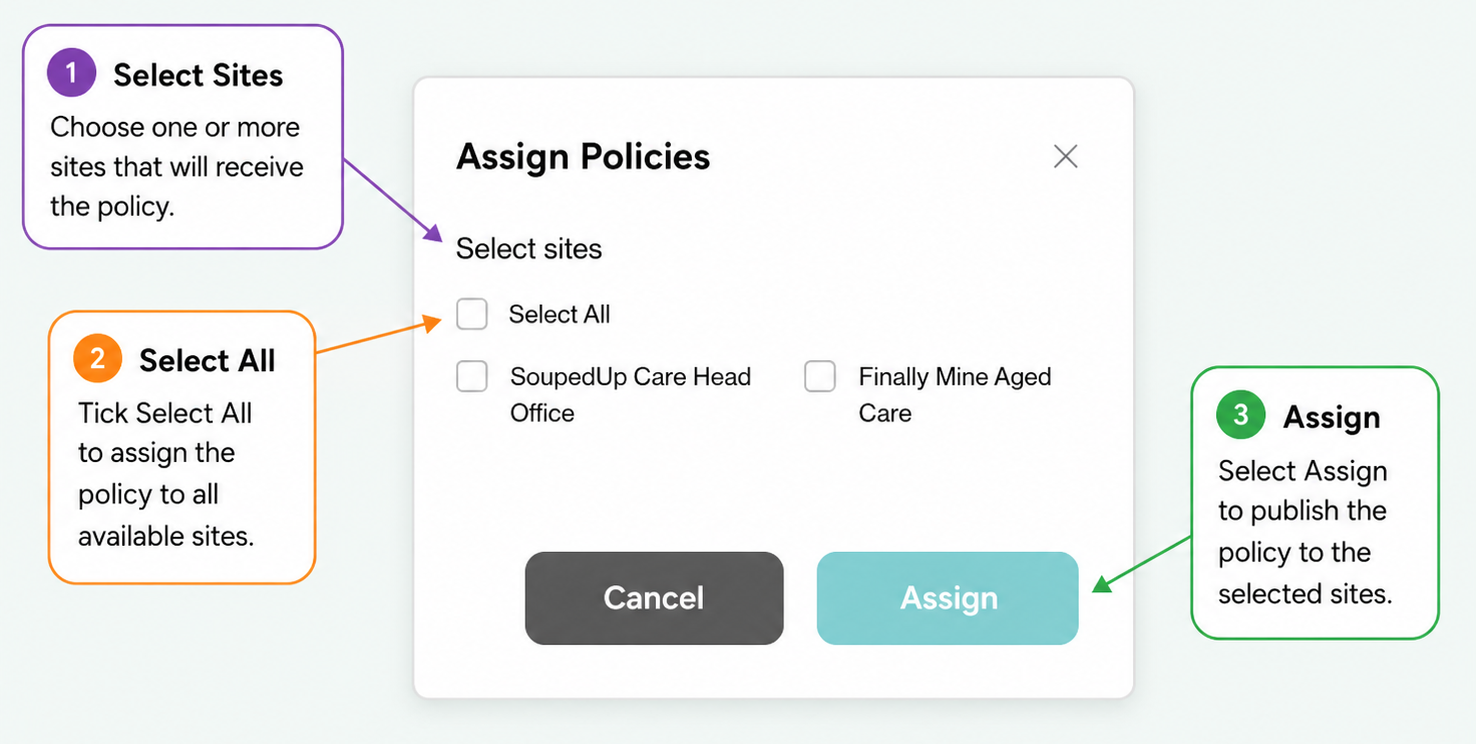
After saving the policy, select the sites that should receive access.
You can:
- Assign the policy to individual sites, or
- Select Select All to publish the policy to every available site.
Select Assign to publish the policy.
Good to Know
- Policies and Procedures can only be created and edited at Head Office level.
- Site Administrators and Users can view assigned Policies and Procedures but cannot edit them.
- Both Policies and Procedures are created using the Create Policy function.
- Policies can be saved as Drafts before being assigned.
- Policies can be assigned to one site, multiple sites, or all sites.
- Updating a policy at Head Office ensures every assigned site accesses the latest approved version.
- Images can be embedded directly into policy content to support instructions and improve usability.
Related Articles
- Understanding Policies & Procedures in the Food Safety Module
- Editing a Policy or Procedure
- Viewing Policies & Procedures at Site Level
- Managing Policy Versions
- Assigning Policies to Sites
Was this article helpful?
That’s Great!
Thank you for your feedback
Sorry! We couldn't be helpful
Thank you for your feedback
Feedback sent
We appreciate your effort and will try to fix the article