Who should use this article?
- Site Administrators
- Food Safety Coordinators
- Managers and Supervisors
- Auditors reviewing operational performance and compliance activities
Overview
Task Reports provide visibility over Operational and Cleaning task completion across the Food Safety Program.
Reports can be used to monitor task performance, identify missed activities, review completion rates, track Corrective Actions and provide evidence during audits and compliance reviews.
Task Reports include multiple report views to support both high-level reporting and detailed operational analysis.
Accessing Task Reports
To access Task Reports:
- Navigate to Food Safety.
- Expand Reports.
- Select Tasks.
The Task Reports page displayed will depend on your access level.
- Head Office users are presented with an organisation-wide summary of task activity across all sites.
- Site users are taken directly to their site's task reporting dashboard.
Head Office Task Reports Overview
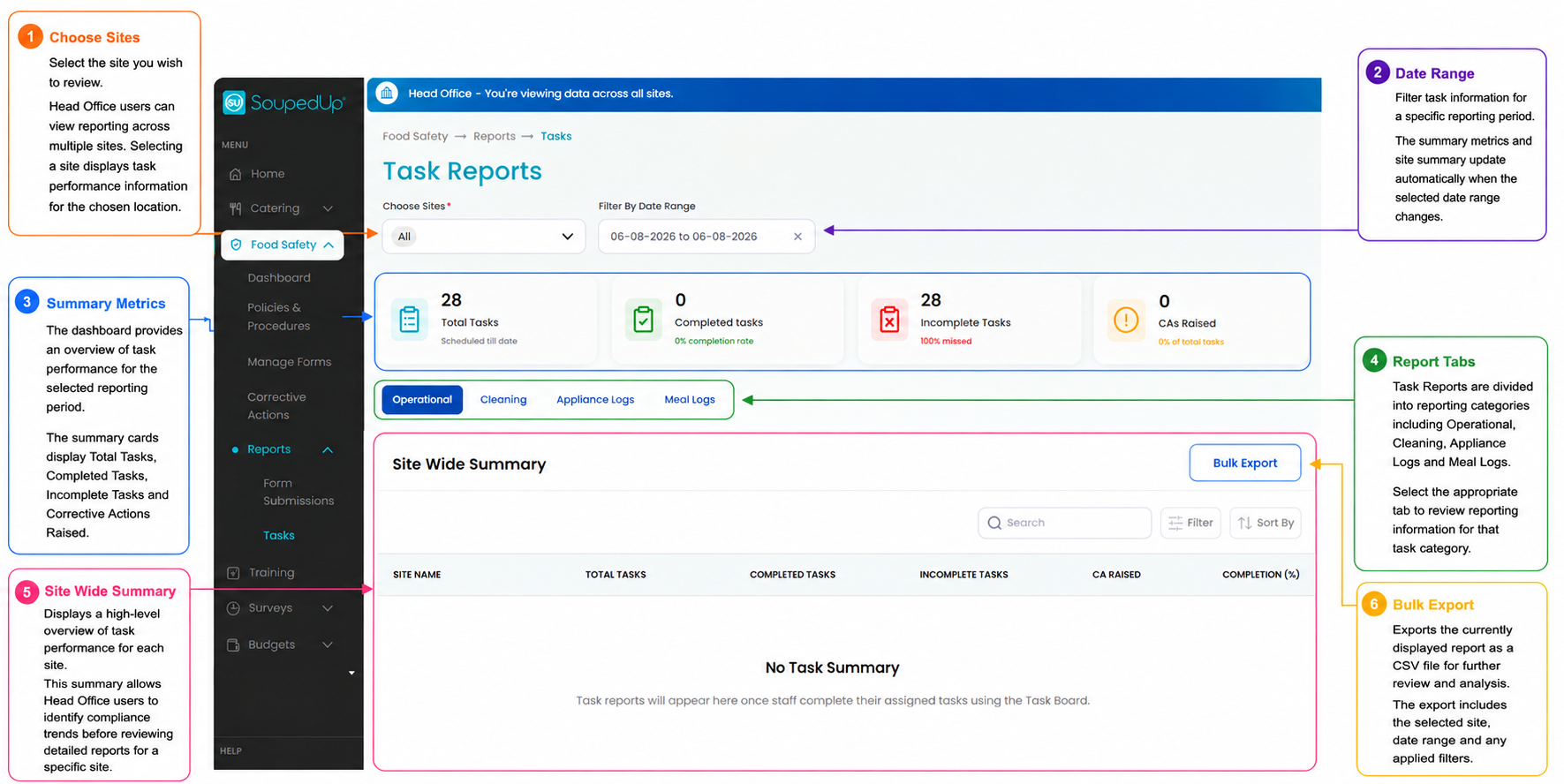
When Head Office users first open Task Reports, a summary of task performance across all sites is displayed.
This overview allows users to monitor organisation-wide task completion before reviewing reporting information for an individual site.
1. Choose Sites
Select the site you wish to review.
Head Office users can view reporting across multiple sites. Selecting a site displays task reporting information for that location.
2. Date Range
Filter task information for a specific reporting period.
The summary metrics and Site Wide Summary automatically update when the selected date range changes.
3. Summary Metrics
The dashboard provides an overview of task performance for the selected reporting period.
The summary cards display:
- Total Tasks
- Completed Tasks
- Incomplete Tasks
- Corrective Actions Raised
4. Report Tabs
Task Reports are divided into reporting categories:
- Operational
- Cleaning
- Appliance Logs
- Meal Logs
Select the required tab to review reporting information for that task category.
5. Site Wide Summary
Displays a high-level overview of task performance for each site.
This summary allows Head Office users to quickly identify sites that may require further investigation before drilling down into site-level reporting.
6. Bulk Export
Exports the currently displayed report as a CSV file for further review and analysis.
Site Task Reports
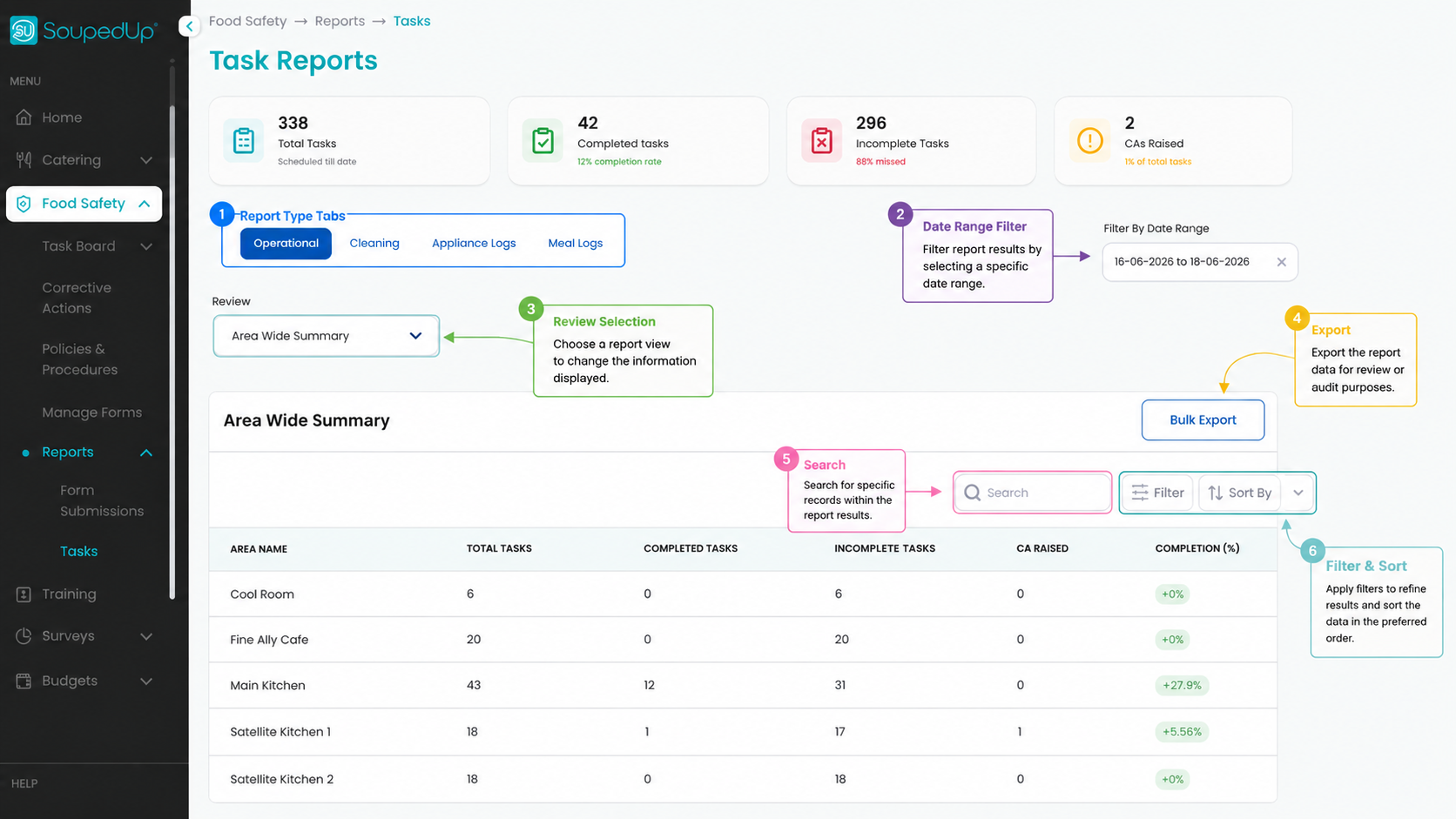
Once a site has been selected, or when accessing Task Reports as a Site User, the reporting dashboard displays task information for that site.
The reporting functions remain the same for both Head Office and Site users once a site has been selected.
Understanding Report Tabs
Task Reports are divided into two reporting categories:
Operational
Displays reporting information for Operational Tasks completed through the Task Board.
Examples include:
- Food safety checks
- Receiving activities
- Food preparation checks
- Equipment inspections
- Service activities
Cleaning
Displays reporting information for Cleaning Tasks completed through the Task Board.
Examples include:
- Cleaning schedules
- Sanitising activities
- Equipment cleaning
- Environmental cleaning
- Deep cleaning activities
Select the required tab to view reporting information for that task category.
Using the Date Range Filter
The Date Range Filter allows reports to be restricted to a specific period.
This can be used to:
- Review daily activities
- Review weekly performance
- Review monthly compliance trends
- Prepare information for audits
- Investigate incidents or Corrective Actions
Select the required date range before reviewing report results.
Head Office users should first select the required site before reviewing detailed report results.
Understanding Summary Metrics
The Task Reports dashboard provides a high-level overview of task performance.
The summary cards display:
| Metric | Description |
|---|---|
| Total Tasks | Total scheduled tasks within the selected date range. |
| Completed Tasks | Number of completed tasks. |
| Incomplete Tasks | Number of tasks not completed. |
| CAs Raised | Number of Corrective Actions raised from task activities. |
These metrics update automatically based on the selected report tab and date range.
Understanding Area Wide Summary
The Area Wide Summary provides a high-level overview of task performance by Area.
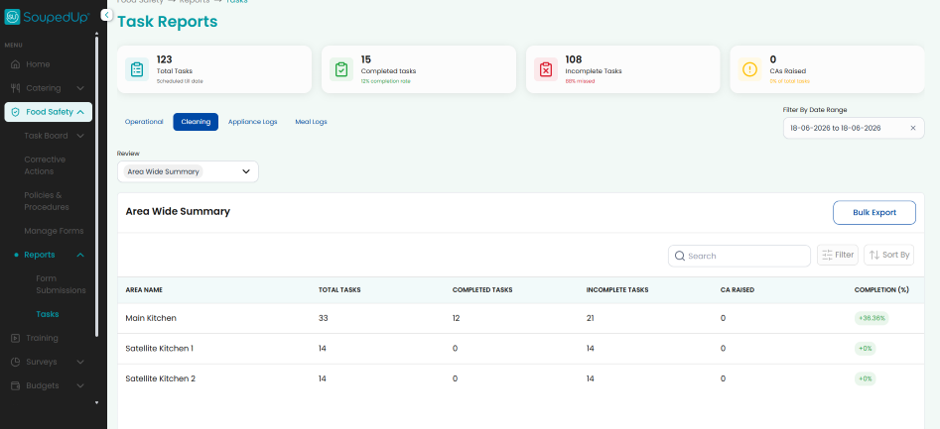
The report displays:
- Area Name
- Total Tasks
- Completed Tasks
- Incomplete Tasks
- Corrective Actions Raised
- Completion Percentage
This view is useful for identifying Areas requiring additional attention or support.
Understanding Detailed Task Log
The Detailed Task Log provides a task-by-task review of activities completed within the selected date range.
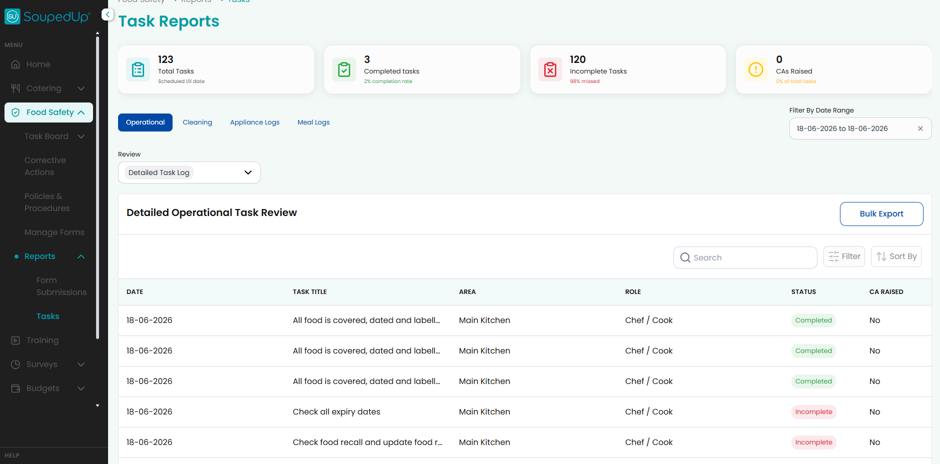
The report displays:
- Date
- Task Title
- Area
- Assigned Role
- Completion Status
- Corrective Action Status
This view is useful when investigating specific tasks or reviewing daily operational performance.
Understanding Role Summary
The Role Summary provides a breakdown of task completion by Role.
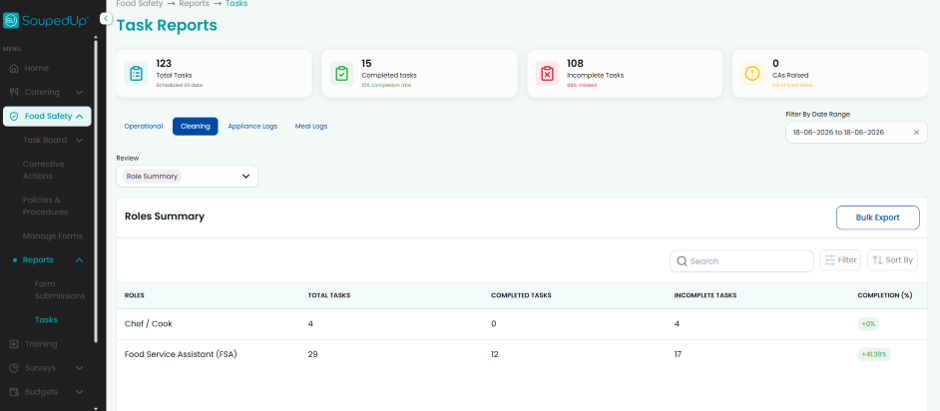
The report displays:
- Role Name
- Total Tasks
- Completed Tasks
- Incomplete Tasks
- Completion Percentage
This view can be used to review workload allocation and monitor task completion across different roles.
Search, Filter and Sort
Task Reports include tools to assist with reviewing large amounts of information.
Search
Use Search to locate specific records within the report.
Filter
Use Filter to restrict displayed results based on available criteria.
Sort
Use Sort to change the order in which records are displayed.
These tools can be used individually or together to refine report results.
Exporting Reports
Task Reports can be exported using the Bulk Export function.
When selected, the currently displayed report data is downloaded as a CSV file.
To export a report:
- Select the required Site (Head Office users only).
- Select the required Report Tab.
- Apply a Date Range if required.
- Apply any required filters.
- Select Bulk Export.
- Open or save the generated CSV file.
Result
Task Reports provide visibility over Operational and Cleaning task performance, helping organisations monitor compliance, identify missed activities and prepare audit evidence.
Good to Know
- Head Office users begin with a Site Wide Summary before selecting an individual site.
- Site users are taken directly to their site's reporting dashboard.
- Area Wide Summary provides a breakdown of task performance across the operational areas within a site.
- Operational, Cleaning, Appliance Log and Meal Log reports use the same reporting functions.
- Report results automatically update when the selected date range changes.
- Corrective Actions raised from tasks are included within report statistics.
- Detailed Task Log provides task-level visibility for operational investigations.
- Role Summary provides completion information by assigned role.
- Reports can be exported as CSV files using the Bulk Export function.
- Exported CSV files can be opened in Microsoft Excel and other spreadsheet applications.
Tip
Head Office users begin by reviewing organisation-wide task performance. Selecting a site transitions to the standard Site Task Reports, where reporting can be reviewed by operational area, individual tasks and assigned roles.
Related Articles
Was this article helpful?
That’s Great!
Thank you for your feedback
Sorry! We couldn't be helpful
Thank you for your feedback
Feedback sent
We appreciate your effort and will try to fix the article