Who Should Use This Article?
This article is intended for:
- SoupedUp Head Office Administrators
- Site Administrators responsible for creating or maintaining Digital Forms
Permissions Required
You must have permission to create and manage forms within the Food Safety Module.
Overview
Digital Forms allow organisations to replace paper-based records with electronic forms that can be completed directly within the Food Safety Module.
Unlike Printable Forms, Digital Forms are completed electronically by users and can include a range of interactive form elements such as text fields, dates, temperatures, checkboxes, dropdown lists, ratings, evidence uploads and more.
This article explains how to create, configure and publish a Digital Form.
Before You Begin
Before creating your Digital Form, consider:
- The purpose of the form.
- The information users need to capture.
- Which fields are mandatory.
- Whether evidence uploads or corrective actions may be required.
Step 1 – Create a New Digital Form
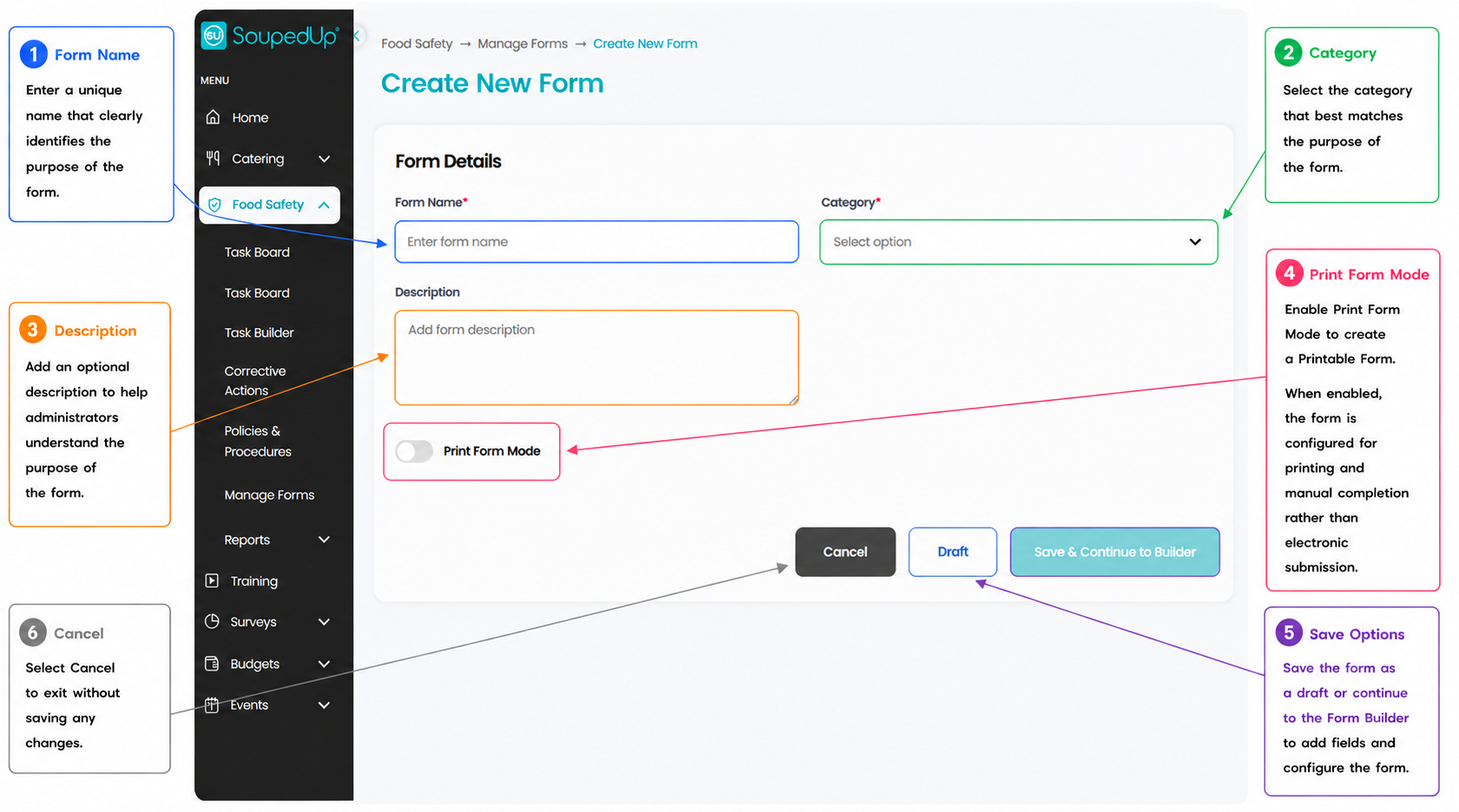
- Navigate to Food Safety → Manage Forms.
- Select Create Form.
- Enter a unique Form Name.
- Select the appropriate Category.
- (Optional) Enter a Description.
- Leave the Print Form Mode toggle switched OFF.
- Select Save & Continue to Builder.
Step 2 – Build Your Digital Form
The Form Builder allows you to create your Digital Form by adding the required Form Elements.
Available Form Elements include:
- Short Text
- Long Text
- Date Picker
- Time Picker
- Number
- Temperature
- Product List
- Yes / No
- Dropdown
- Checkbox
- Evidence Upload
- File Upload
- Ratings
- Initials
Select the required Form Element to add it to your Digital Form.
After adding a Form Element, select it within the Form Builder to configure its settings using the Configure Panel.
Typical configuration options include:
- Field Label
- Placeholder Text
- Additional Information
- Required Field
Select Save within the Configure Panel after making your changes.
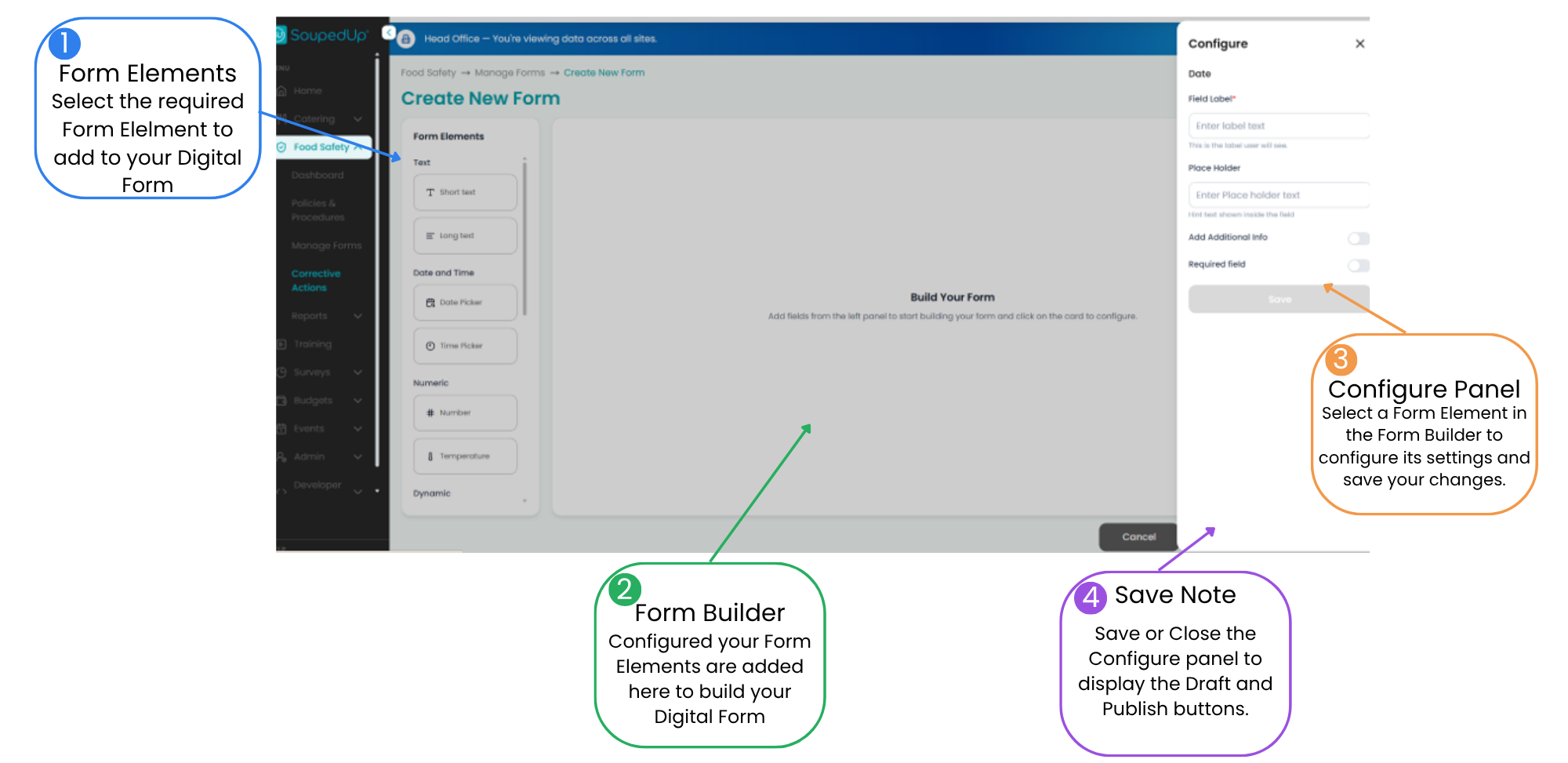
Repeat this process until all required Form Elements have been added and configured.
Step 3 – Review Your Form
Before publishing, review your Digital Form to ensure:
- All required fields have been added.
- Field labels are clear and meaningful.
- Mandatory fields are marked as Required where appropriate.
- The form captures all information needed by the end user.
Step 4 – Publish Your Digital Form
When you are ready to make the form available:
- Close the Configure Panel (if open).
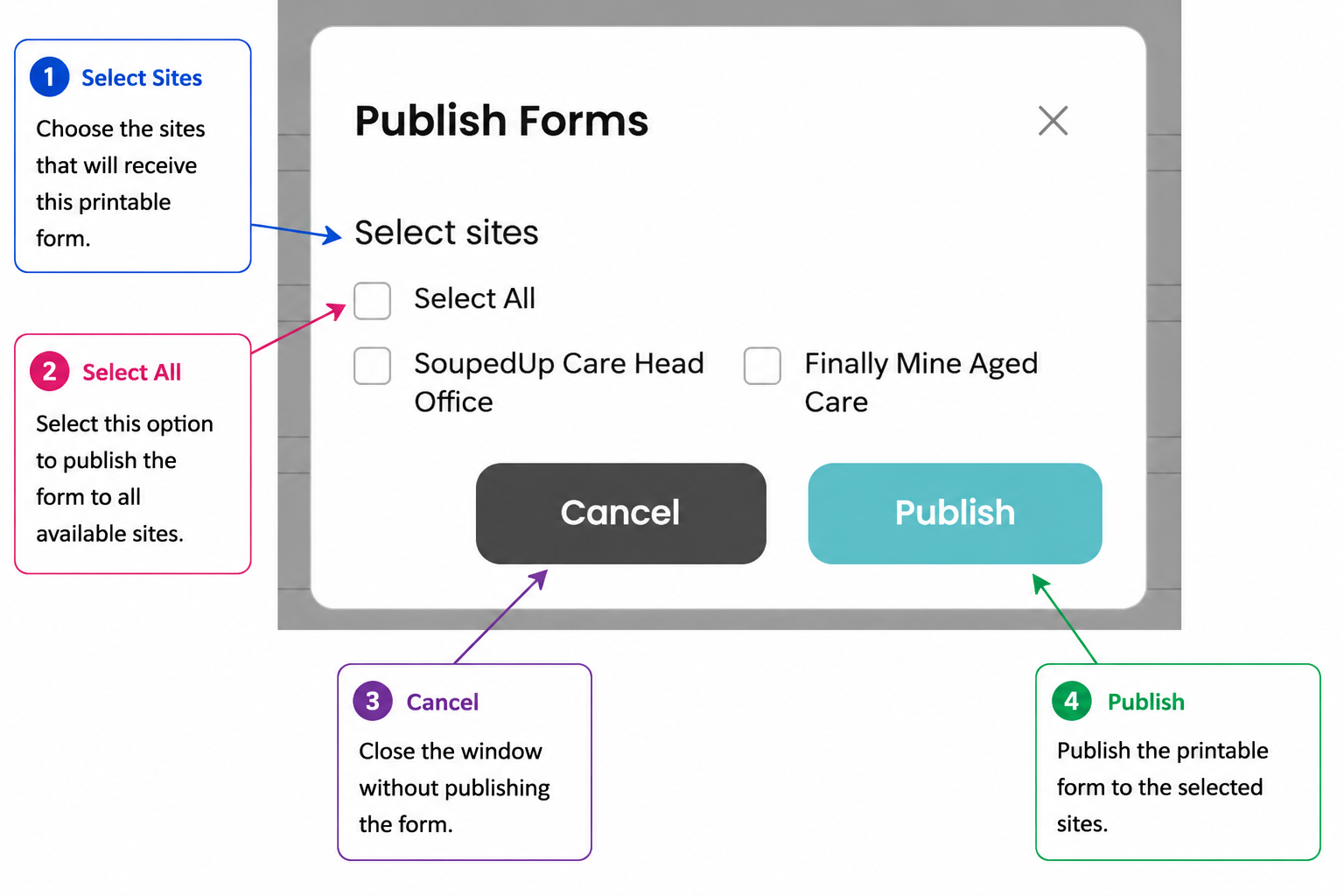
- Select Publish.
- Select the site or sites that should receive the form.
- Select Publish to complete the process.
Good to Know
- Digital Forms are completed electronically within the Food Safety Module.
- Leave Print Form Mode switched OFF when creating a Digital Form.
- Head Office can publish Digital Forms to one or multiple sites.
- Site Administrators can publish Digital Forms created within their own site.
- Published forms can be edited, versioned or cloned as required.
- Choosing meaningful field labels improves usability and reporting.
Related Articles
Was this article helpful?
That’s Great!
Thank you for your feedback
Sorry! We couldn't be helpful
Thank you for your feedback
Feedback sent
We appreciate your effort and will try to fix the article