Who Should Use This Article?
- Site Administrators
- Food Safety Supervisors
- Food Handlers
- Head Office Users
Permissions Required
No specific permissions are required to read this article.
Different users will have access to different features within the Food Safety Module depending on their assigned User type and permissions.
Overview
Welcome to the SoupedUp Food Safety Module.
The Food Safety Module has been designed to simplify food safety compliance by bringing your daily operational tasks, cleaning schedules, temperature monitoring, digital forms, corrective actions and reporting together in one easy-to-use system.
Whether you're setting up a new site, completing your daily food safety activities or reviewing compliance reports, the Food Safety Module provides a central location for managing your food safety program.
This guide provides an overview of the key areas within the module and explains how they work together to support your organisation's food safety requirements.
Before You Begin
Before using the Food Safety Module:
- Ensure you have been assigned the correct User permissions.
- Confirm you have access to the appropriate Site.
- Familiarise yourself with your organisation's food safety procedures.
If you are unsure which permissions you require, contact your Site Administrator.
Understanding the Food Safety Module
The Food Safety Module consists of three main areas that work together to manage your food safety program.
1. Dashboard
Purpose
The Dashboard provides a high-level overview of your site's food safety performance and compliance.
It allows supervisors and administrators to quickly monitor:
- Task completion
- Active Forms
- Active Policies
- Outstanding Corrective Actions
- Compliance trends
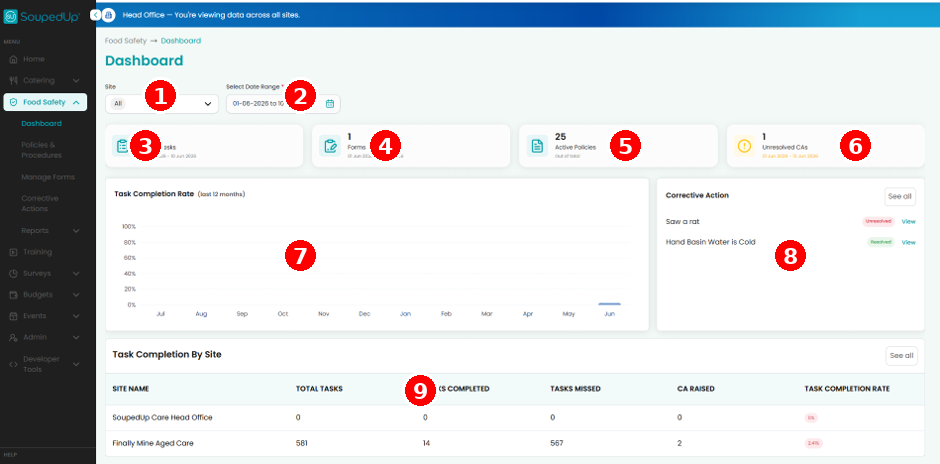
Understanding the Dashboard
No. | Dashboard Component | Description |
1 | Site Filter | Filter dashboard information by site or review information across all available sites. |
2 | Date Range | Select the reporting period to review Food Safety activities and compliance information. |
3 | Active Tasks | Displays the total number of Food Safety tasks generated during the selected reporting period. |
4 | Forms Submitted | Displays the total number of forms completed and submitted by users. |
5 | Active Policies | Displays the number of published policies and procedures currently available within the Food Safety Program. |
6 | Unresolved Corrective Actions | Displays corrective actions that require review, investigation or completion. |
7 | Task Completion Rate | Provides a visual summary of task completion performance over time. |
8 | Corrective Actions Panel | Displays recently raised corrective actions and their current status. |
9 | Task Completion by Site | Compares task completion performance across participating sites, including completed tasks, missed tasks and corrective actions raised. |
2. Task Board
Purpose
The Task Board is where users complete their day-to-day food safety activities.
From the Task Board, users can:
- Complete Operational Tasks
- Complete Cleaning Tasks
- Record Temperature Checks
- Complete Digital Forms
- Raise Corrective Actions
- Search and filter assigned work
Most users will spend the majority of their time working within the Task Board.
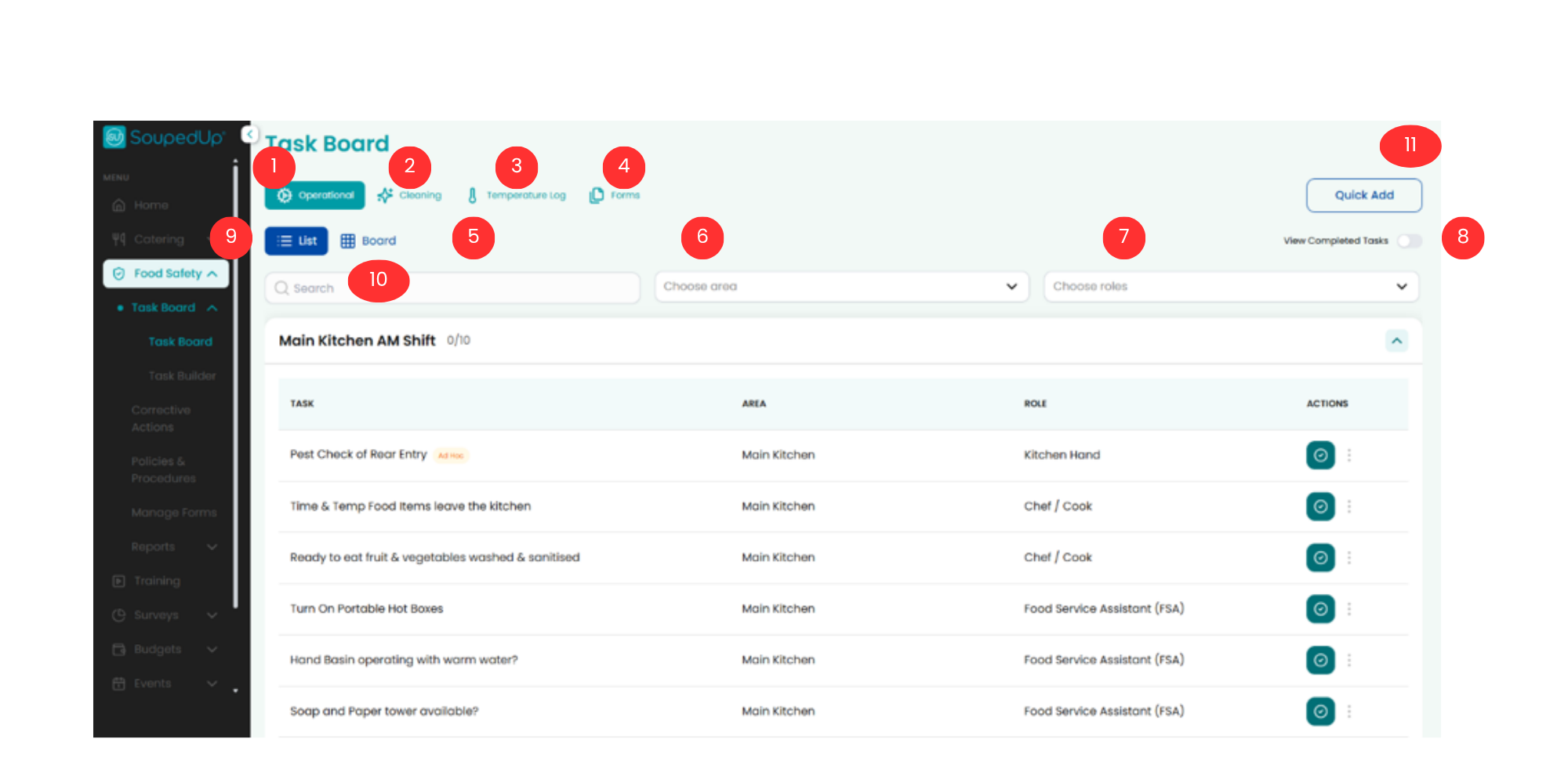
Key Features
No. | Feature | Description |
1 | Operational Tasks | View and action operational food safety and daily workflow tasks. |
2 | Cleaning Tasks | View and action cleaning and sanitation activities assigned to the site. |
3 | Temperature Log | View and action temperature monitoring records configured for the site. |
4 | Forms | Access Food Safety Forms assigned to your site. |
5 | Search | Search for specific tasks within the selected tab. |
6 | Area Filter | Filter tasks by Area. |
7 | Role Filter | Filter tasks by assigned Role. |
8 | View Completed Tasks | Show or hide completed tasks. |
9 | List View | Display tasks in a list format. |
10 | Board View | Display tasks in a tile format. |
11 | Quick Add | Quickly record activities without navigating away from the Task Board. |
3. Food Safety Setup
Purpose
Food Safety Setup is used by Site Administrators to configure the Food Safety Module for their organisation.
From here you can manage:
- Site Information
- Areas
- Equipment
- Roles
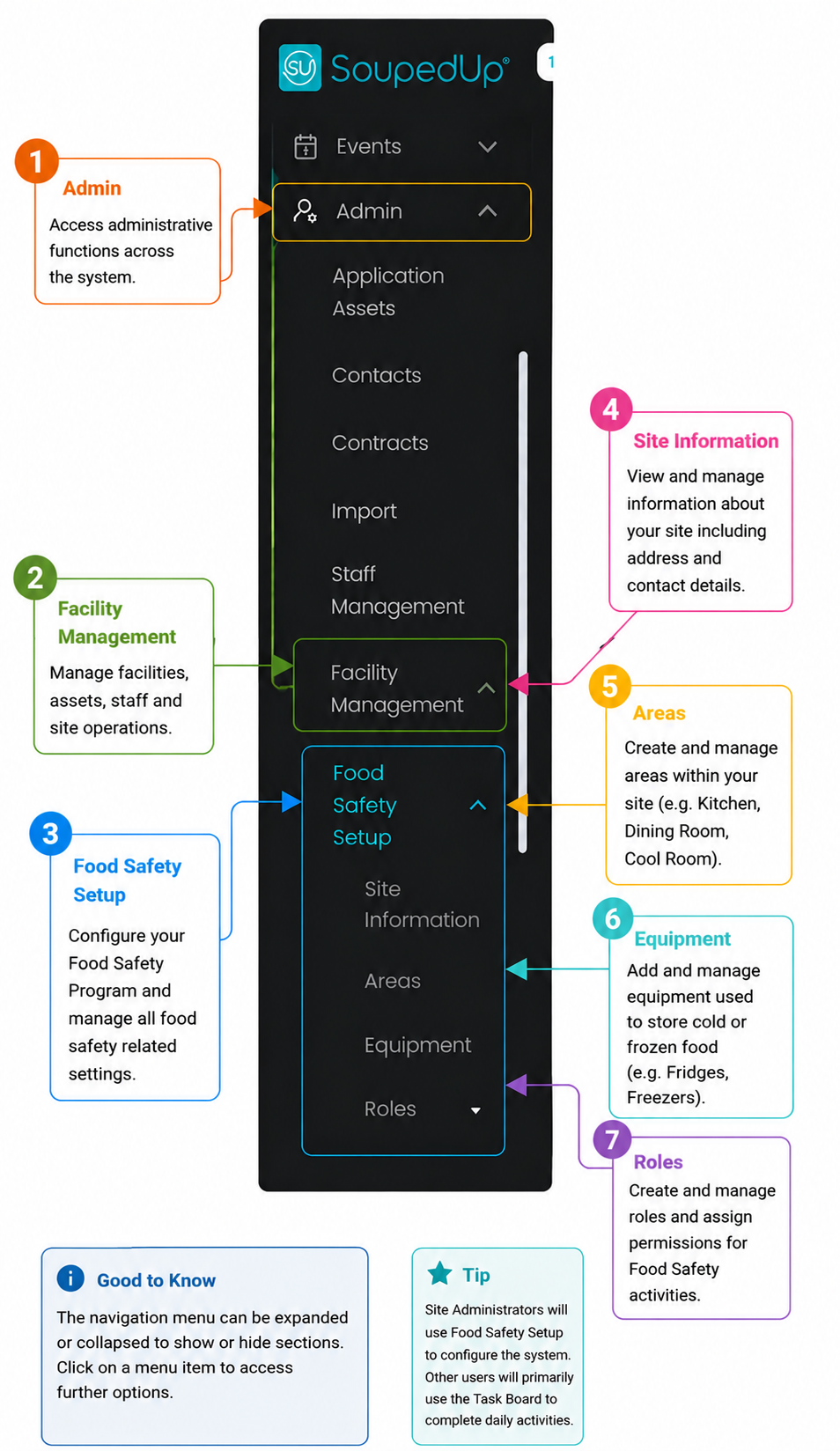
- Task Builder
- Policies & Procedures
- Forms
Once configured, these settings become available throughout the Food Safety Module.
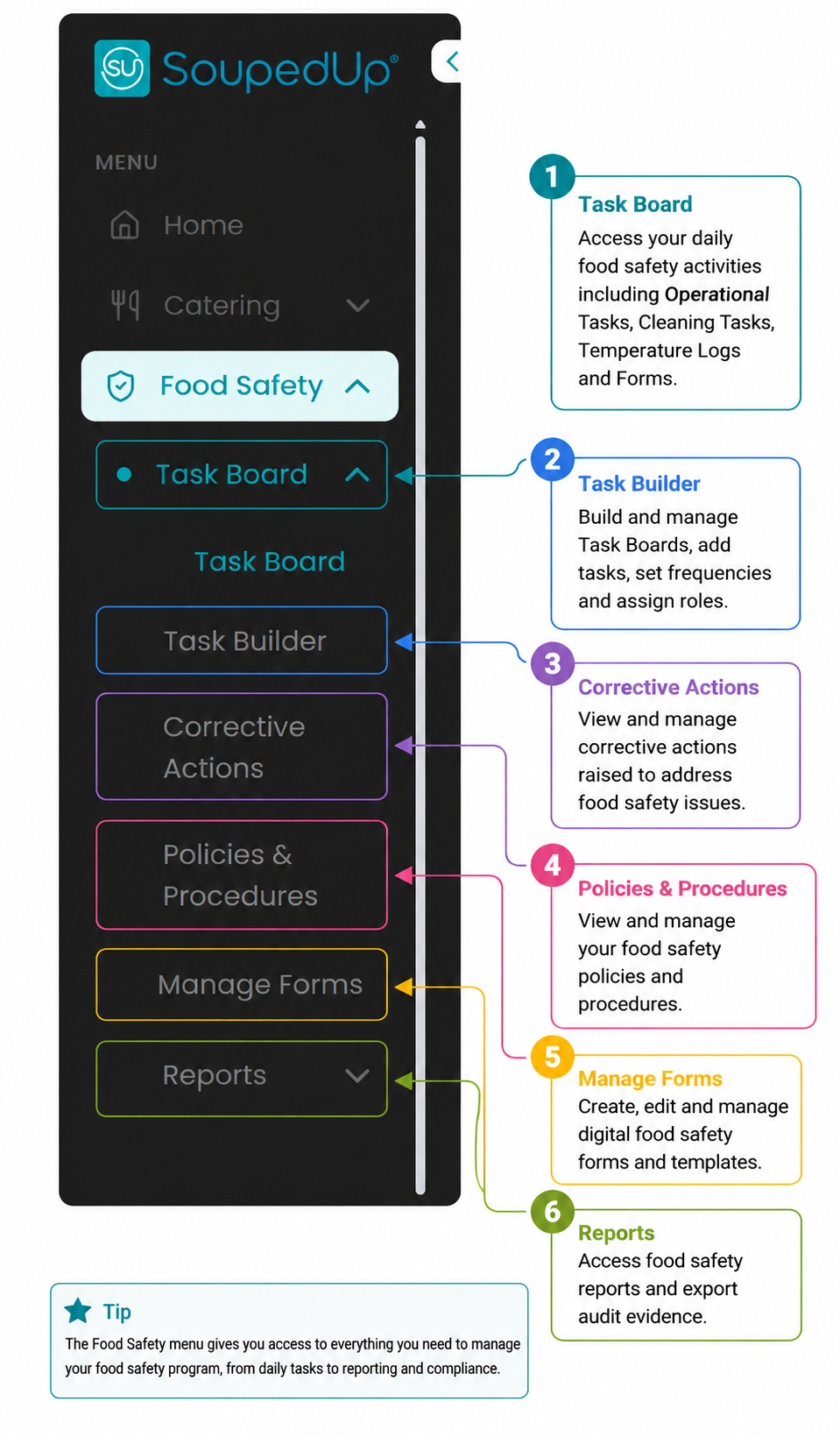
How the Food Safety Module Works
The Food Safety Module follows a simple workflow.
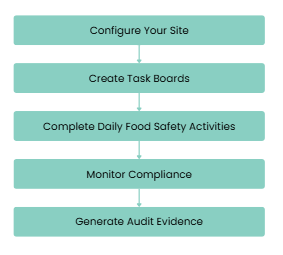
Each stage builds upon the previous one, creating a complete digital record of your organisation's food safety activities.
Step-by-Step Instructions
If you're new to the Food Safety Module, we recommend following these articles in order.
Site Administrators
- Review Site Information
- Create Areas
- Add Equipment
- Create Roles
- Build a Task Board
- Publish a Task Board
Food Safety Supervisors
- Understanding the Dashboard
- Understanding the Task Board
- Review Reports
- Manage Corrective Actions
Food Handlers
- Understanding the Task Board
- Complete a Task
- Complete Temperature Checks
- Complete Digital Forms
Good to Know
The Food Safety Module has been designed around the way food service teams naturally work throughout the day.
Once your site has been configured, most users simply log in, complete their assigned activities and record food safety information as they work. Supervisors can monitor compliance in real time, while Site Administrators manage configuration behind the scenes.
This approach reduces paperwork, improves visibility and creates a complete digital record of your food safety program.
Related Articles
Was this article helpful?
That’s Great!
Thank you for your feedback
Sorry! We couldn't be helpful
Thank you for your feedback
Feedback sent
We appreciate your effort and will try to fix the article