Who should use this article?
Site Administrators and Food Safety Supervisors.
Overview
Roles can be assigned to tasks to identify which staff member or team is responsible for completing an activity.
Roles are selected from the Roles that have been configured within the Food Safety Program.
Assign a Role
Navigate to the Section containing the task you wish to update.
Select the checkbox next to the required task.
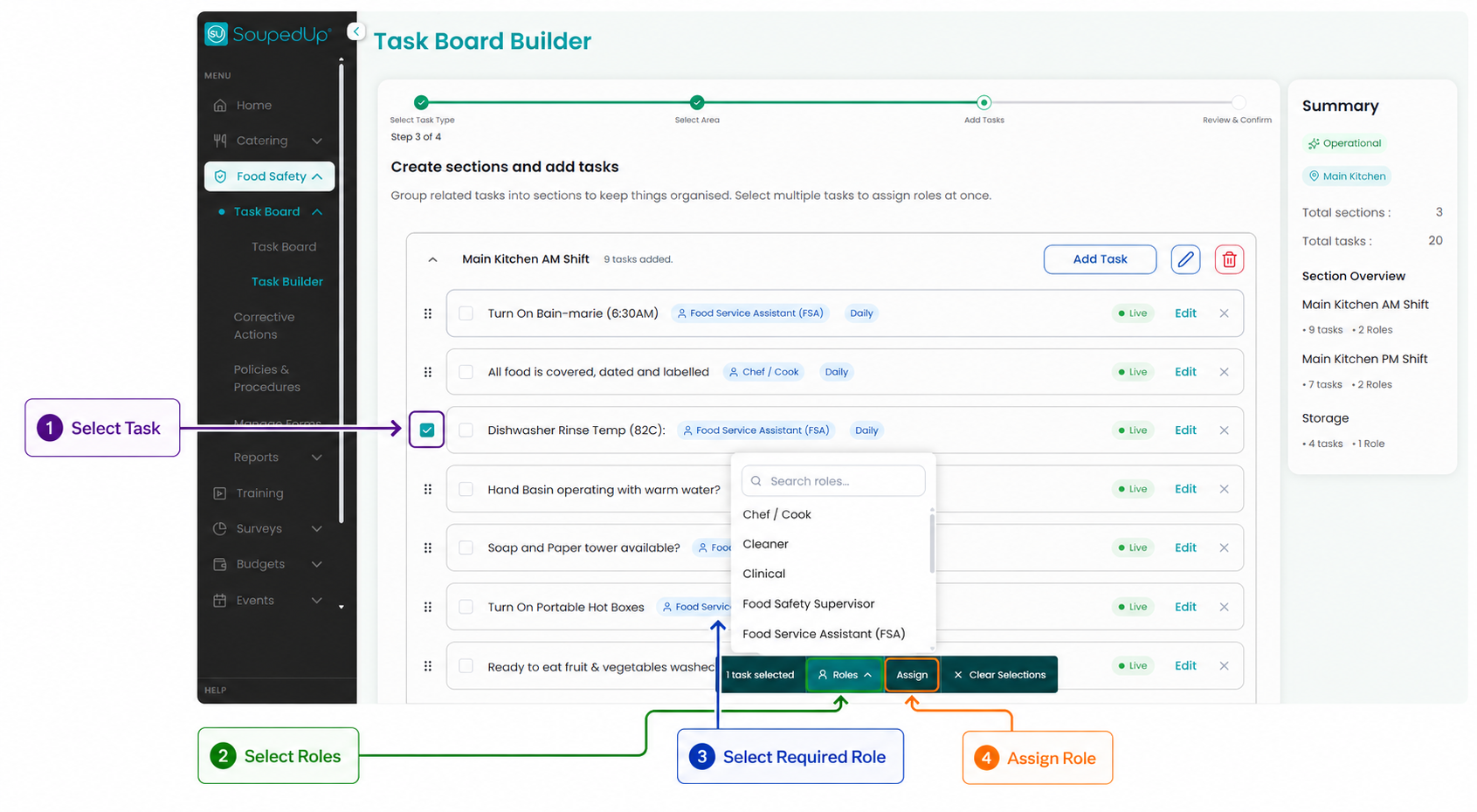
Complete Role Assignment
Step 1 - Select the Task
Select the checkbox next to the task that requires a role assignment.
Once selected, the Task Actions menu will appear at the bottom of the screen.
Step 2 - Select Roles
Select Roles from the Task Actions menu.
A list of available Roles will be displayed.
The available Roles are populated from the Roles configured within:
Admin → Facility Management → Food Safety Setup → Roles
Step 3 - Select the Required Role
Choose the Role responsible for completing the task.
Examples may include:
- Food Service Assistant (FSA)
- Chef / Cook
- Cleaner
- Food Safety Supervisor
- Manager
Step 4 - Assign the Role
Select Assign to apply the Role to the selected task.
Result
The Role has been successfully assigned to the task.
The assigned Role will be displayed against the task within the Section.
Good to Know
A Role can be assigned to multiple tasks within a Section.
Assign tasks to the Role that would normally complete the activity as part of their daily responsibilities.
Using consistent Role assignments can help improve accountability and make Task Boards easier for staff to follow.
Related Articles
Was this article helpful?
That’s Great!
Thank you for your feedback
Sorry! We couldn't be helpful
Thank you for your feedback
Feedback sent
We appreciate your effort and will try to fix the article