Who should use this article?
Site Administrators and Food Safety Supervisors.
Overview
Tasks are added to Sections within the Food Safety Program and represent the activities staff are required to complete.
When adding a Task, you can:
- Select a task from the SoupedUp library
- Reuse a task from My Tasks
- Create a new custom task
Add a Task
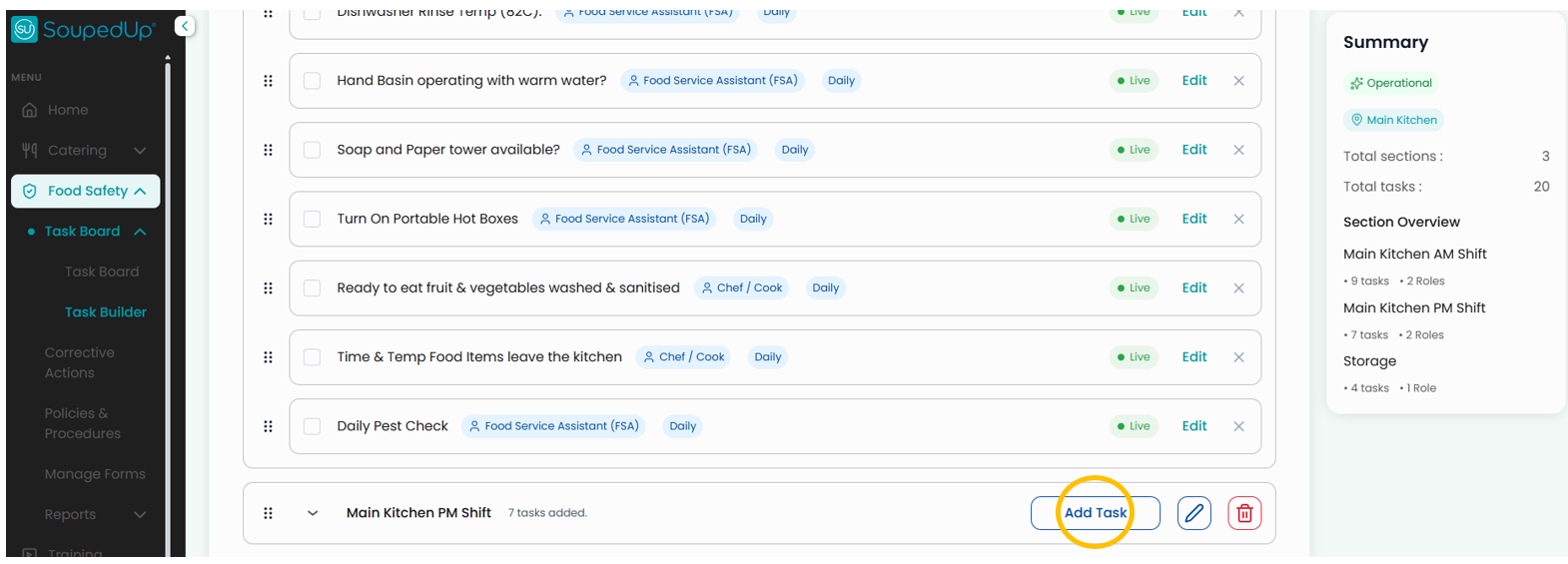
Within the required Section, select Add Task.
Select a Task Source
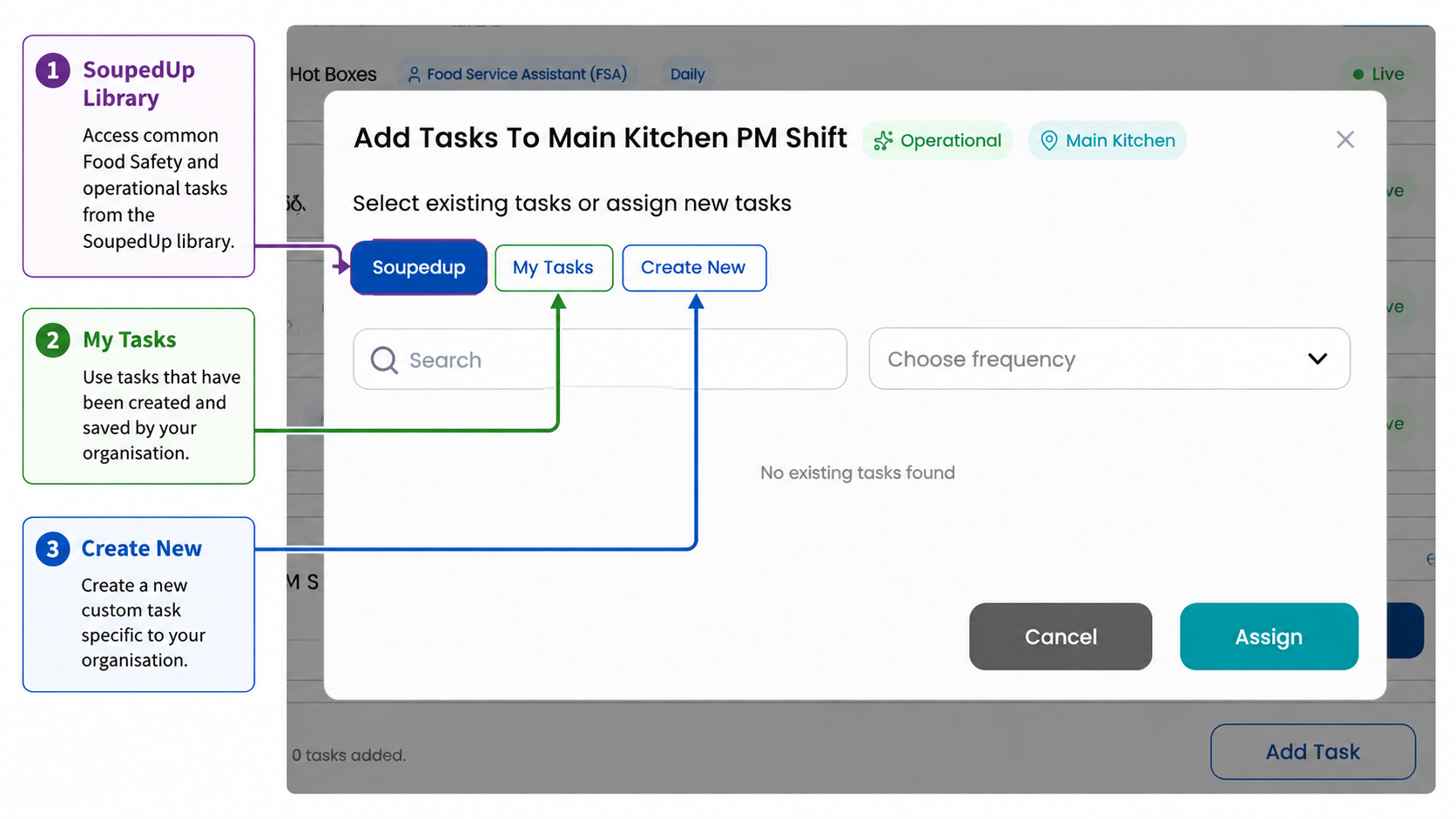
When adding a Task, choose one of the following options.
SoupedUp
The SoupedUp library contains common Food Safety and operational tasks that can be assigned to a Section.
As the Food Safety Program continues to evolve, additional tasks may be added to the library to support common industry requirements.
My Tasks
My Tasks contains tasks that have previously been created and saved by your organisation.
These tasks can be reused across multiple Sections where required.
Create New
Create New allows you to create a custom task.
Use this option when the required task does not already exist in the SoupedUp library or My Tasks.
Create a New Task
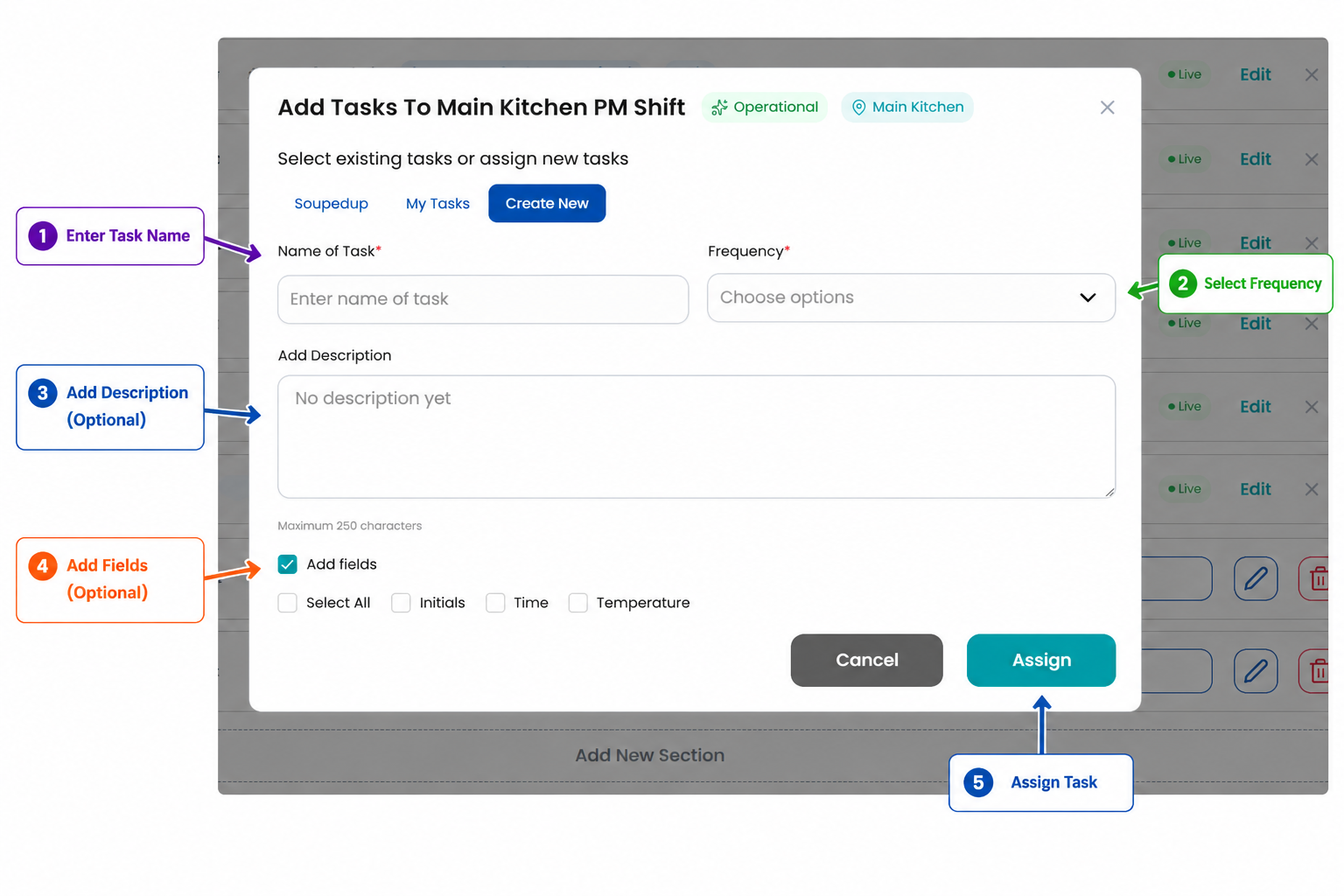
Select Create New.
Step 1 - Enter Task Name
Enter a clear and descriptive task name.
Examples include:
- Record Cool Room Temperature
- Check Food Labels
- Sanitise Preparation Bench
- Check Dishwasher Rinse Temperature
Step 2 - Select Frequency
Select how often the task should be completed.
Available options include:
- Daily
- Weekly
- Monthly
Step 3 - Add Description (Optional)
Enter additional information or instructions to support task completion.
This field is optional.
Step 4 - Add Fields (Optional)
Additional fields can be added to capture information when the task is completed.
Available options include:
Initials
Use Initials when staff are required to identify who completed the task.
Time
Use Time when the completion time should be recorded.
Temperature
Use Temperature when a temperature reading is required as part of the task.
Examples include:
- Hot holding checks
- Dishwasher temperature checks
- Transportation of Food checks
Additional fields can be selected individually or combined as required.
Step 5 - Assign Task
Select Assign to add the task to the Section.
Result
The task has been successfully added to the Section and is available for staff to complete.
Good to Know
Before creating a new task, check the SoupedUp library and My Tasks to determine whether a suitable task already exists.
Reusing existing tasks can help maintain consistency across Sections.
Use the Search function to identify tasks previously used.
Related Articles
Was this article helpful?
That’s Great!
Thank you for your feedback
Sorry! We couldn't be helpful
Thank you for your feedback
Feedback sent
We appreciate your effort and will try to fix the article