Who Should Use This Article?
- Site Users
- Site Administrators
- Managers
- Auditors
Overview
Task Reports provide visibility of Food Safety activities completed within the Food Safety Program.
Reports can be used to monitor task completion, identify missed activities, review temperature monitoring records, track corrective actions and provide evidence during internal reviews and audits.
The Reports module is divided into several reporting areas, allowing users to review operational activities, cleaning activities and temperature monitoring records.
Understanding Task Reports
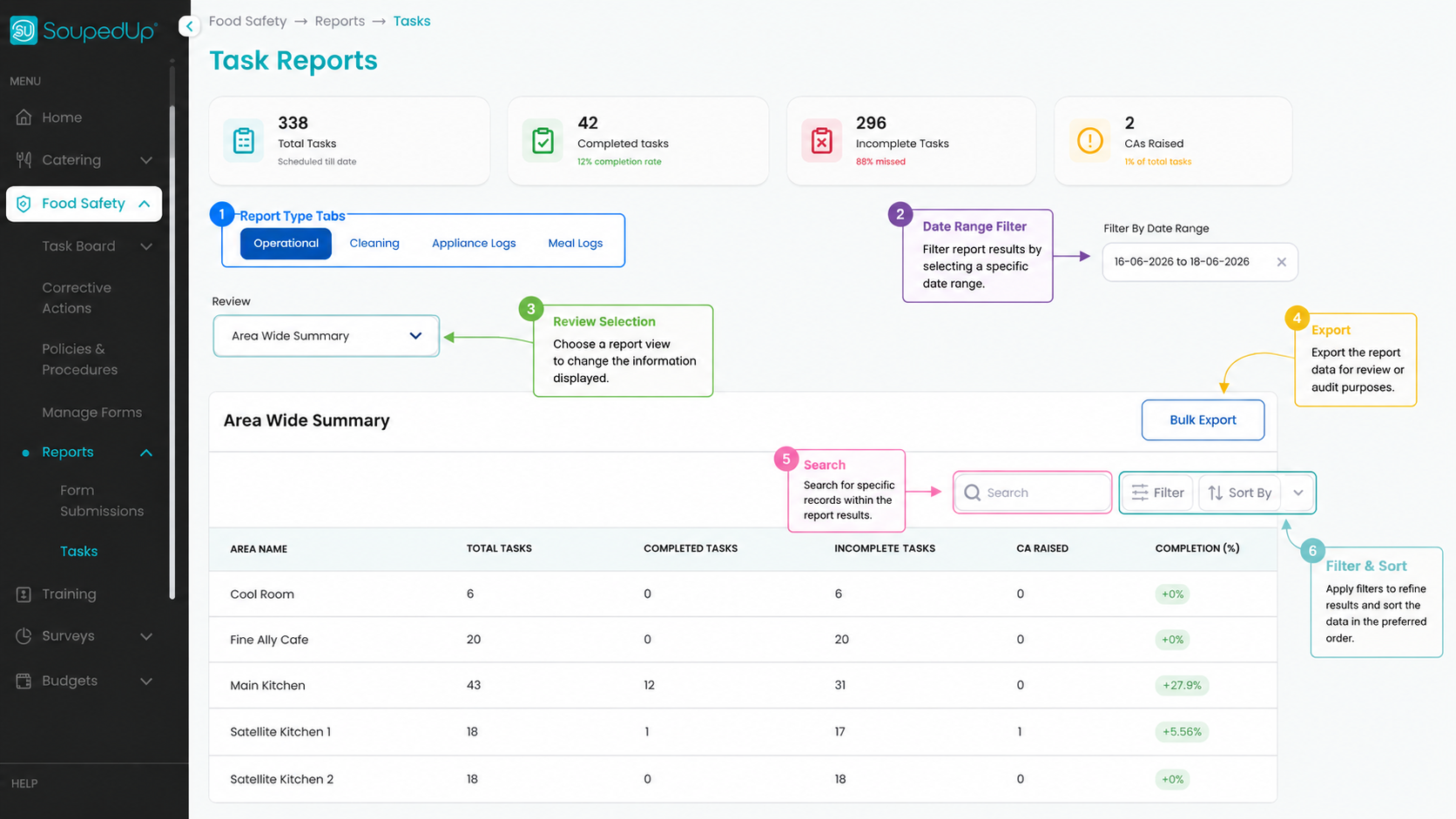
Key Features
| Feature | Description |
|---|---|
| Operational | Review operational food safety task activity. |
| Cleaning | Review cleaning task activity. |
| Appliance Logs | Review appliance temperature monitoring records. |
| Meal Logs | Review meal temperature, cold preparation and cooling records. |
| Date Range Filter | Limit reports to a selected date range. |
| Review Filter | Select different report views. |
| Search | Search report records. |
| Filter | Apply additional report filters. |
| Sort | Change report sorting order. |
| Bulk Export | Export report data for review or audit purposes. |
Available Report Types
Operational Reports
Operational Reports provide visibility of operational food safety activities completed across the site.
Available views include:
- Area Wide Summary
- Role Summary
- Detailed Task Log
Operational Reports can be used to identify completed tasks, missed tasks and corrective actions raised against operational activities.
Cleaning Reports
Cleaning Reports provide visibility of cleaning and sanitation activities completed across the site.
Available views include:
- Area Wide Summary
- Role Summary
- Detailed Task Log
Cleaning Reports operate in the same manner as Operational Reports but focus specifically on cleaning activities.
Appliance Logs
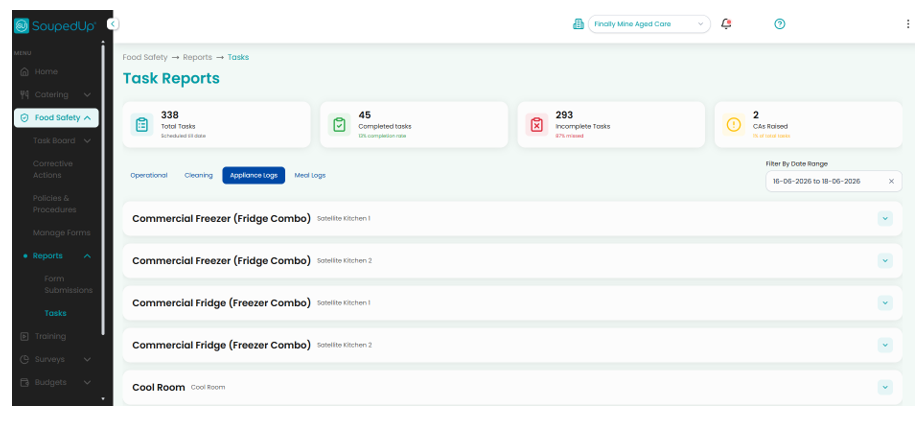
Appliance Logs provide access to appliance temperature monitoring records.
Examples include:
- Cool Rooms
- Refrigerators
- Freezers
- Blast Chillers
Appliance Logs can be used to review historical temperature records and identify potential food safety risks.
Meal Logs
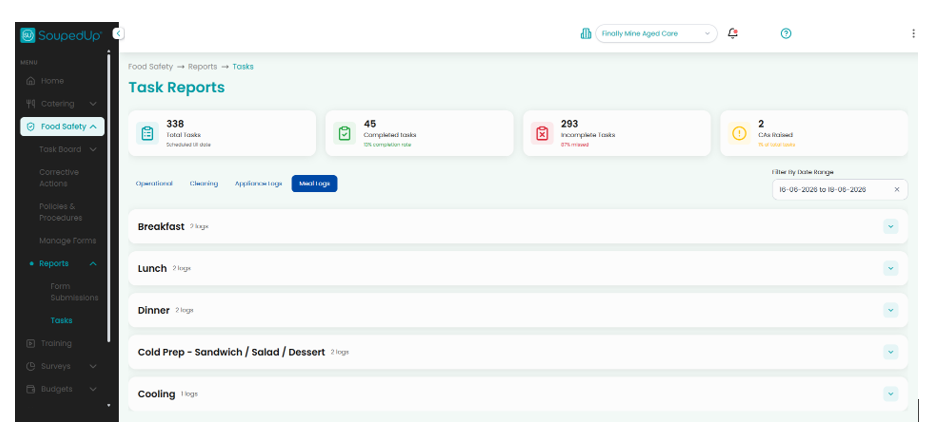
Meal Logs provide access to meal service and food preparation temperature records.
Examples include:
- Breakfast
- Lunch
- Dinner
- Cold Preparation Activities
- Cooling Records
Meal Logs provide evidence that food has been prepared, monitored and cooled in accordance with food safety requirements.
Filtering Reports
Reports can be filtered using the Date Range filter.
To filter report results:
- Navigate to Reports.
- Select the required report tab.
- Select the Date Range field.
- Choose the required reporting period.
- Review the updated results.
Only records captured within the selected date range will be displayed.
Exporting Reports
Report data can be exported for further review, management reporting or audit purposes.
To export a report:
- Open the required report.
- Apply any required filters.
- Select Bulk Export.
- Save or open the exported report file.
Important
Reports display information captured within the Food Safety Program.
If a task, temperature log or corrective action has not been completed or saved, it will not appear in report results.
Always ensure activities have been recorded correctly before relying on report data.
Result
Users can review Food Safety activities, monitor compliance, identify gaps and generate evidence for operational reviews and audits.
Good to Know
- Reports can be filtered by date range.
- Report results can be searched, filtered and sorted.
- Operational and Cleaning Reports provide multiple reporting views.
- Appliance Logs provide temperature monitoring history for equipment.
- Meal Logs provide access to meal temperature, cold preparation and cooling records.
- Reports can be exported using the Bulk Export function.
- Report data can be used as supporting audit evidence.
Related Articles
Was this article helpful?
That’s Great!
Thank you for your feedback
Sorry! We couldn't be helpful
Thank you for your feedback
Feedback sent
We appreciate your effort and will try to fix the article