Who Should Use This Article?
This article is intended for:
- Site Administrators
- Food Safety Supervisors
- Managers
- Chefs and Cooks
- Staff responsible for investigating or resolving food safety issues
Overview
The Corrective Actions register provides a central location to review, manage and resolve food safety issues recorded within the Food Safety Program.
From this screen users can:
- Review existing Corrective Actions
- Search, filter and sort records
- View supporting evidence and attachments
- Update investigation notes and actions taken
- Change the resolution status of a Corrective Action
- Export Corrective Action records for reporting purposes
Corrective Actions raised from Operational Tasks, Cleaning Tasks, Temperature Logs and other Food Safety records are recorded within the Corrective Actions register.
Access Corrective Actions
- Navigate to Food Safety.
- Select Corrective Actions from the left-hand menu.
- The Corrective Actions register will open.
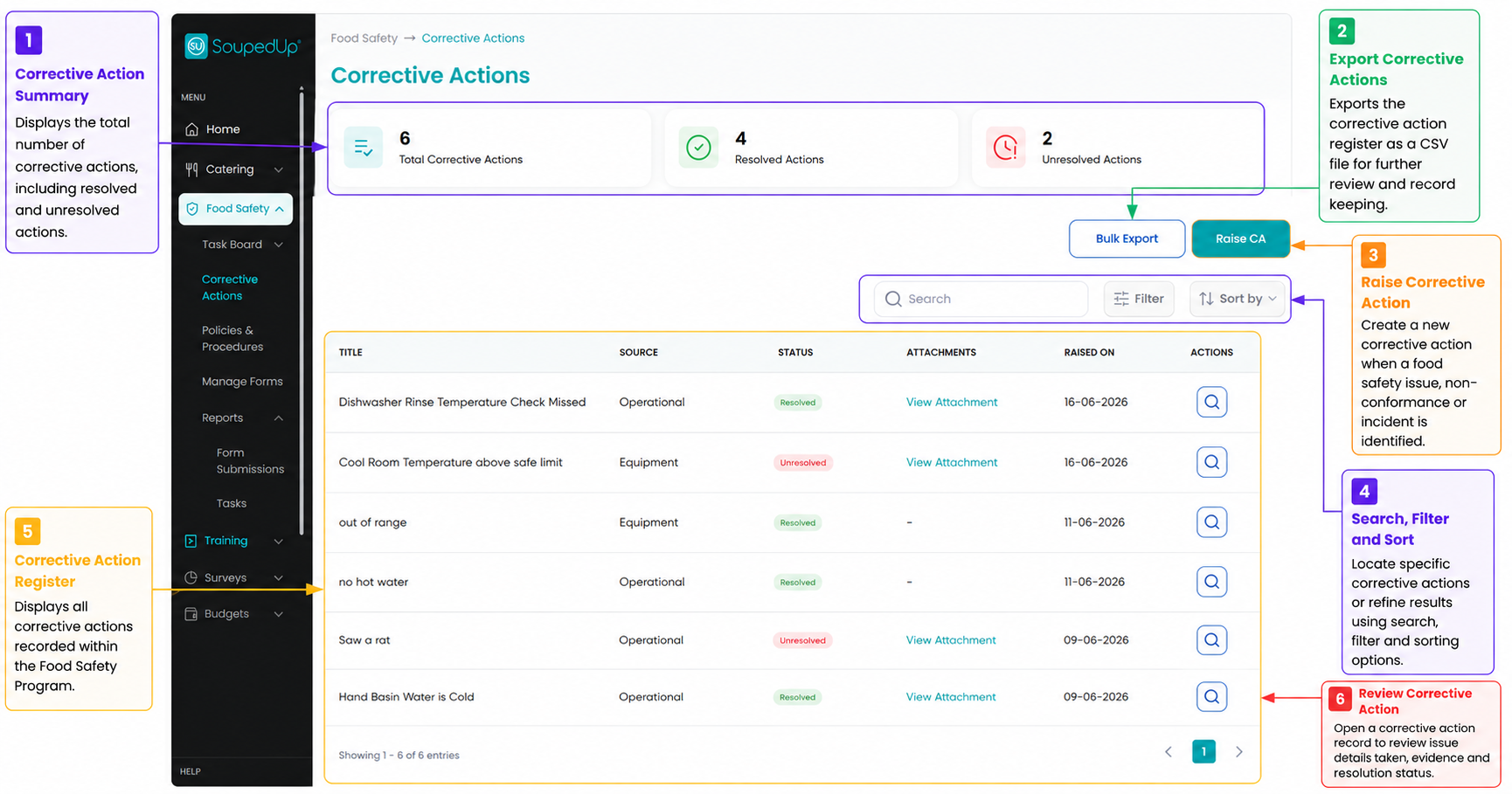
Understanding the Corrective Actions Register
The Corrective Actions register provides an overview of all Corrective Actions recorded within the site.
From this screen you can:
- View the total number of Corrective Actions
- Review Resolved and Unresolved actions
- Search, filter and sort records
- Export Corrective Action records
- Open individual Corrective Actions for review
Raising a New Corrective Action
A new Corrective Action can also be created from this screen using the Raise CA button.
For detailed instructions, refer to:
Understanding and Raising Corrective Actions
View a Corrective Action
To review an existing Corrective Action:
- Locate the required Corrective Action.
- Select the View icon.
- Review the details recorded.
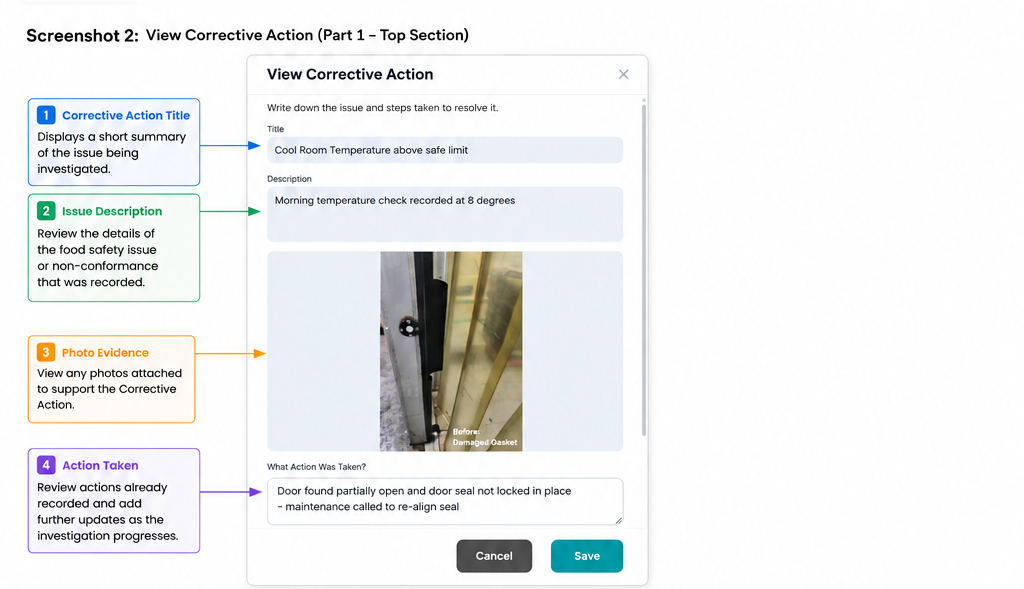
The upper section displays:
- Corrective Action title
- Description of the issue
- Supporting photo evidence
- Actions already recorded
Update a Corrective Action
As investigations progress, additional information can be recorded within the Corrective Action.
Users can:
- Add investigation outcomes
- Record follow-up activities
- Document actions taken to address the issue
- Update progress notes
Additional information should be entered into the What Action Was Taken field.
Updates can be added throughout the life of the Corrective Action as new information becomes available.
Resolve a Corrective Action
Once the issue has been addressed:
- Open the Corrective Action.
- Review all recorded details.
- Update the Resolution Status to Resolved.
- Select Save.
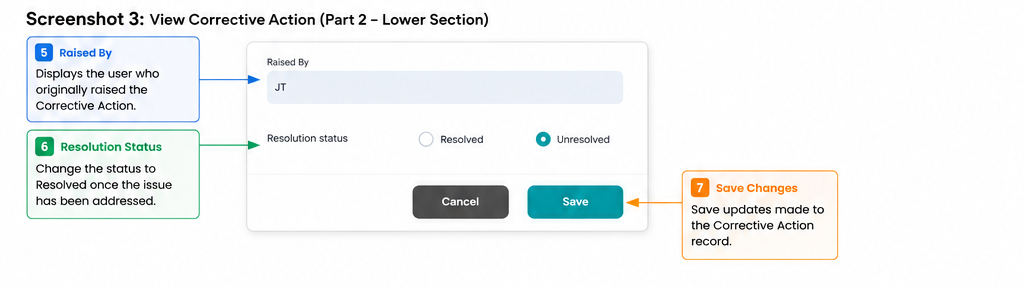
Resolved Corrective Actions remain available for future review, reporting and audit purposes.
Result
The Corrective Action has been reviewed, updated and recorded within the Food Safety Program.
All investigation details, evidence and resolution information remain available for reporting and audit purposes.
Good to Know
- Corrective Actions can be raised manually or from other Food Safety records.
- Additional notes can be recorded in the What Action Was Taken field.
- Photo evidence remains attached to the Corrective Action record.
- Corrective Actions can be updated multiple times before being resolved.
- Resolved Corrective Actions remain visible within the register and exports.
- Corrective Action records may be used as supporting evidence during audits and compliance reviews.
- The Corrective Actions register includes export, search, filter and sorting functions to assist with investigations and reporting.
Related Articles
Was this article helpful?
That’s Great!
Thank you for your feedback
Sorry! We couldn't be helpful
Thank you for your feedback
Feedback sent
We appreciate your effort and will try to fix the article