Overview
Roles are used in the Food Safety Program to identify who is responsible for completing tasks and activities.
Examples of roles may include:
- Chef / Cook
- Cleaner
- Food Safety Supervisor
- Food Service Assistant
- Head Chef
- Manager
Roles help support task assignment, accountability and reporting across Food Safety activities.
Please note Roles are not the same as Users, these are set up at the time of the contract and are connected to the software permissions.
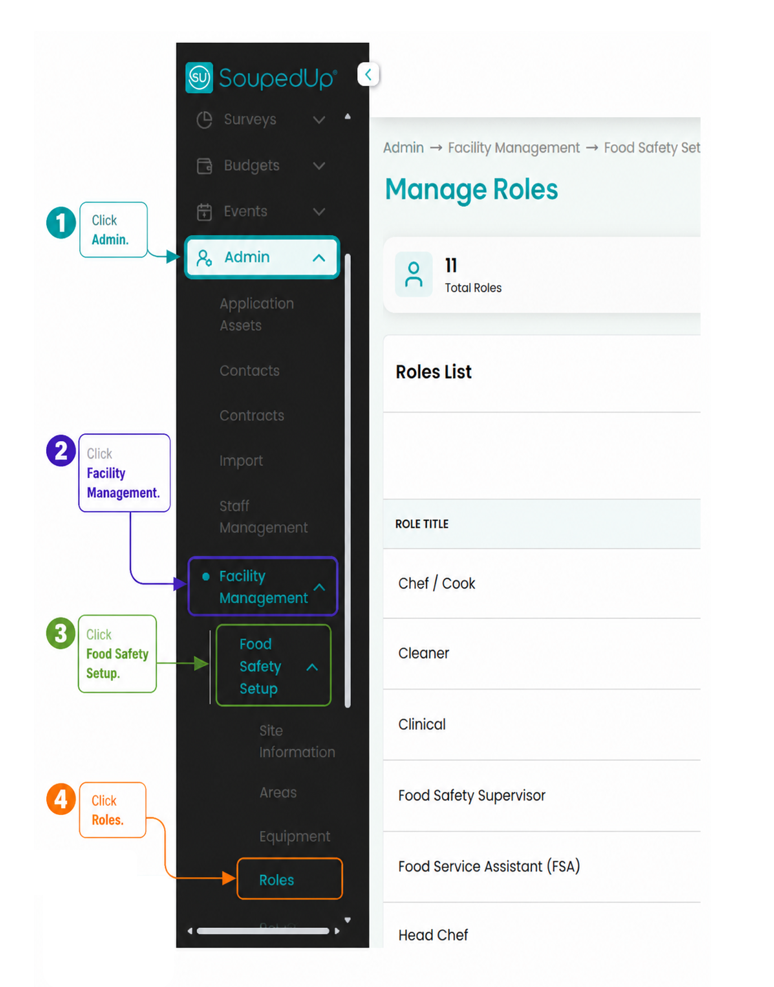
Navigate to Roles
Navigate to:
Admin → Facility Management → Food Safety Setup → Roles
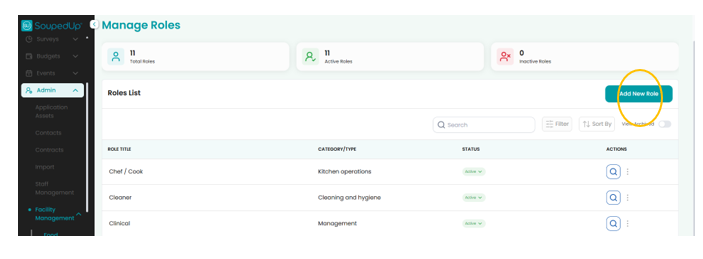
Add New Role
From the Manage Roles screen, select Add New Role.
Complete Details
Complete the required fields as shown below.
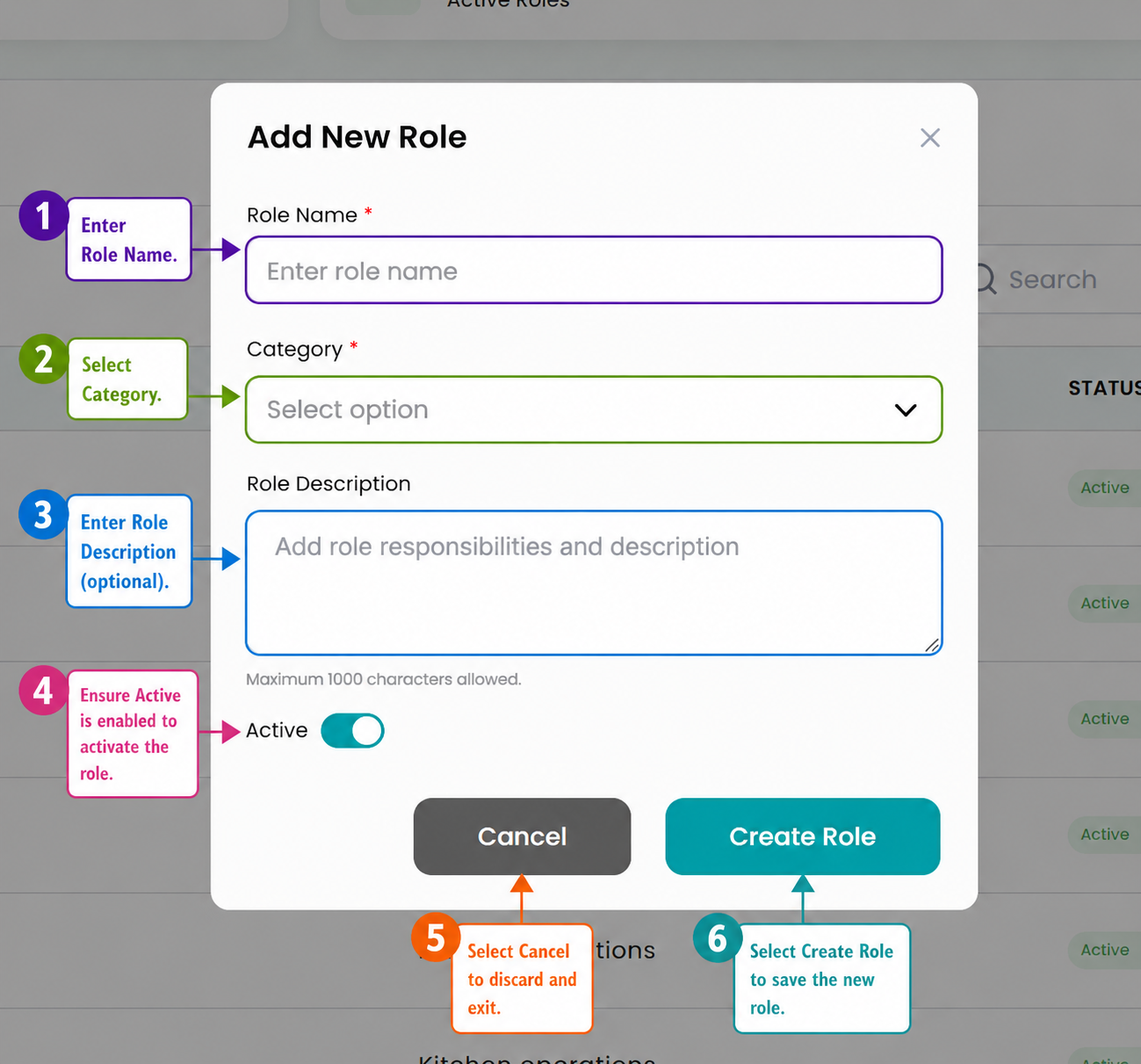
Step 1 - Enter Role Name
Enter the name of the role being created.
Examples include:
- Chef / Cook
- Cleaner
- Food Safety Supervisor
- Food Service Assistant
- Head Chef
Use role names that reflect the responsibilities of staff at your site.
Step 2 - Select Category
Select the category that best matches the role.
Available category options include:
- Cleaning and hygiene
- Kitchen operations
- Management
- Safety and compliance
Categories help group roles and support clearer task assignment.
Step 3 - Enter Role Description
Enter a description of the role and its responsibilities.
This field can be used to describe:
- Daily responsibilities
- Food Safety activities
- Task ownership
- Reporting or review responsibilities
This field is optional, but adding a clear description can help administrators understand how the role should be used.
Step 4 - Check Active Status
Review the Active toggle to determine whether the role should be available for use within the Food Safety Program.
- Active should be selected if the role is currently in use.
- Inactive can be used for roles that are no longer required or not currently being assigned to users or tasks.
Inactive roles remain in the system but may not be available for assignment to new Food Safety activities.
Step 5 - Select Cancel
Select Cancel to discard the Role if it is not required, this will not save your work.
Step 6 - Select Create Role
Select Create Role to save the new role.
Result
The role has been successfully created and can now be used within the Food Safety Program.
Roles can be used to support:
- Task assignment
- Operational accountability
- Cleaning responsibilities
- Compliance activities
Good to Know
Roles should reflect real responsibilities within your site.
For example, if one person performs both cooking and cleaning tasks, consider whether these should be managed under one role or separated into different roles for clearer task allocation.
Clear role names make it easier to assign tasks and understand who is responsible for completing Food Safety activities.
Related Articles
Was this article helpful?
That’s Great!
Thank you for your feedback
Sorry! We couldn't be helpful
Thank you for your feedback
Feedback sent
We appreciate your effort and will try to fix the article