1. Who Should Use This Article?
This article is intended for:
- Site Administrators
- Food Safety Supervisors
- Chefs responsible for administering the Food Safety Module
- Office Administrators responsible for system setup and maintenance
2. Permissions Required
Site Administrator
Understanding the difference between Users and Roles is recommended before creating users, assigning permissions, or building Task Boards.
3. Overview
Although Users and Roles work together, they perform different functions within the Food Safety Module.
A User controls what a person can access within the software.
A Role identifies the work a person performs and is used to assign Operational and Cleaning Tasks.
Understanding the difference between the two helps ensure users have the correct access while tasks are allocated to the appropriate operational staff.
4. Before You Begin
Before configuring your Food Safety Module, ensure you understand:
- User permissions determine software access.
- Roles determine operational responsibilities.
- Roles are created during Food Safety Setup.
- Users are assigned through the Administration module.
5. Accessing Users and Roles
User access is managed through the Administration module.
Operational Roles are managed within:
Food Safety → Setup → Roles
6. Understanding Users and Roles
The table below summarises the difference between Users and Roles.
| Users | Roles |
|---|---|
| Determine what a person can access within the Food Safety Module. | Identify the work a person performs within the food safety process. |
| Assigned when creating or editing a user account. | Created within Food Safety Setup. |
| Control software permissions. | Used to allocate Operational and Cleaning Tasks. |
| Do not appear on Task Boards. | Display on Task Boards and can be used to filter tasks. |
| Usually one User Type per person. | One or more Roles may be assigned depending on responsibilities. |
Common Examples
| Person | User Type | Operational Role |
|---|---|---|
| Food Safety Supervisor | Site Administrator | Food Safety Supervisor |
| Chef | Site Administrator | Chef |
| Kitchen Hand | Food Handler | Kitchen Hand |
| Food Service Assistant | Food Handler | Food Service Assistant |
| Cleaning Staff | Food Handler | Cleaning Staff |
| Office-based Site Administrator | Site Administrator | No operational role required |
User Permissions
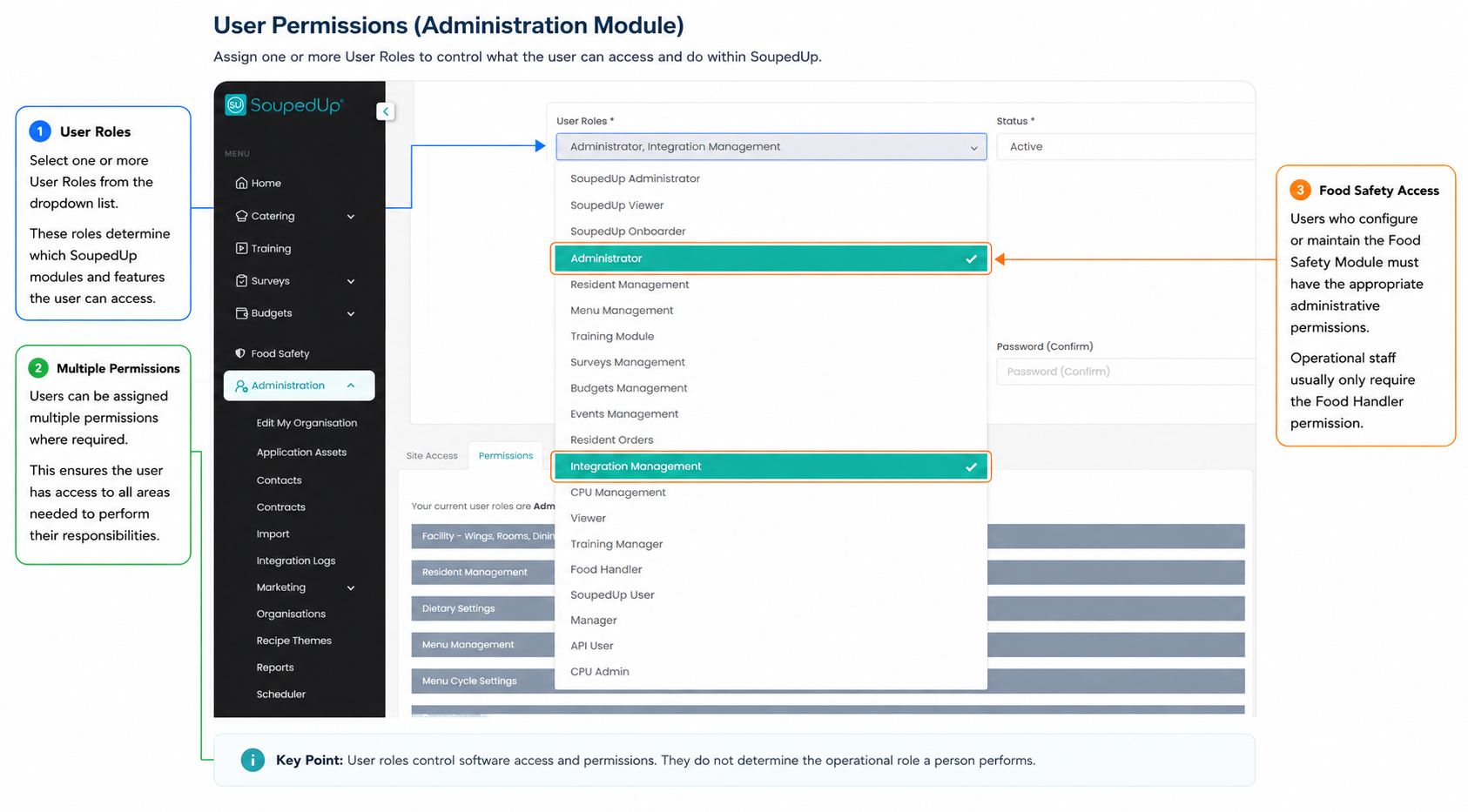
Explanation
User Types determine what a person can access within the Food Safety Module.
The two User Types available for the Food Safety Module are:
Site Administrator
- Configure the Food Safety Module
- Create and maintain Areas
- Create Equipment
- Manage Roles
- Build Task Boards
- Create Forms
- Manage Policies and Procedures
- View Reports
Food Handler
- Complete Operational Tasks
- Complete Cleaning Tasks
- Record Temperatures
- Complete Digital Forms
- View Policies and Procedures
Operational Roles
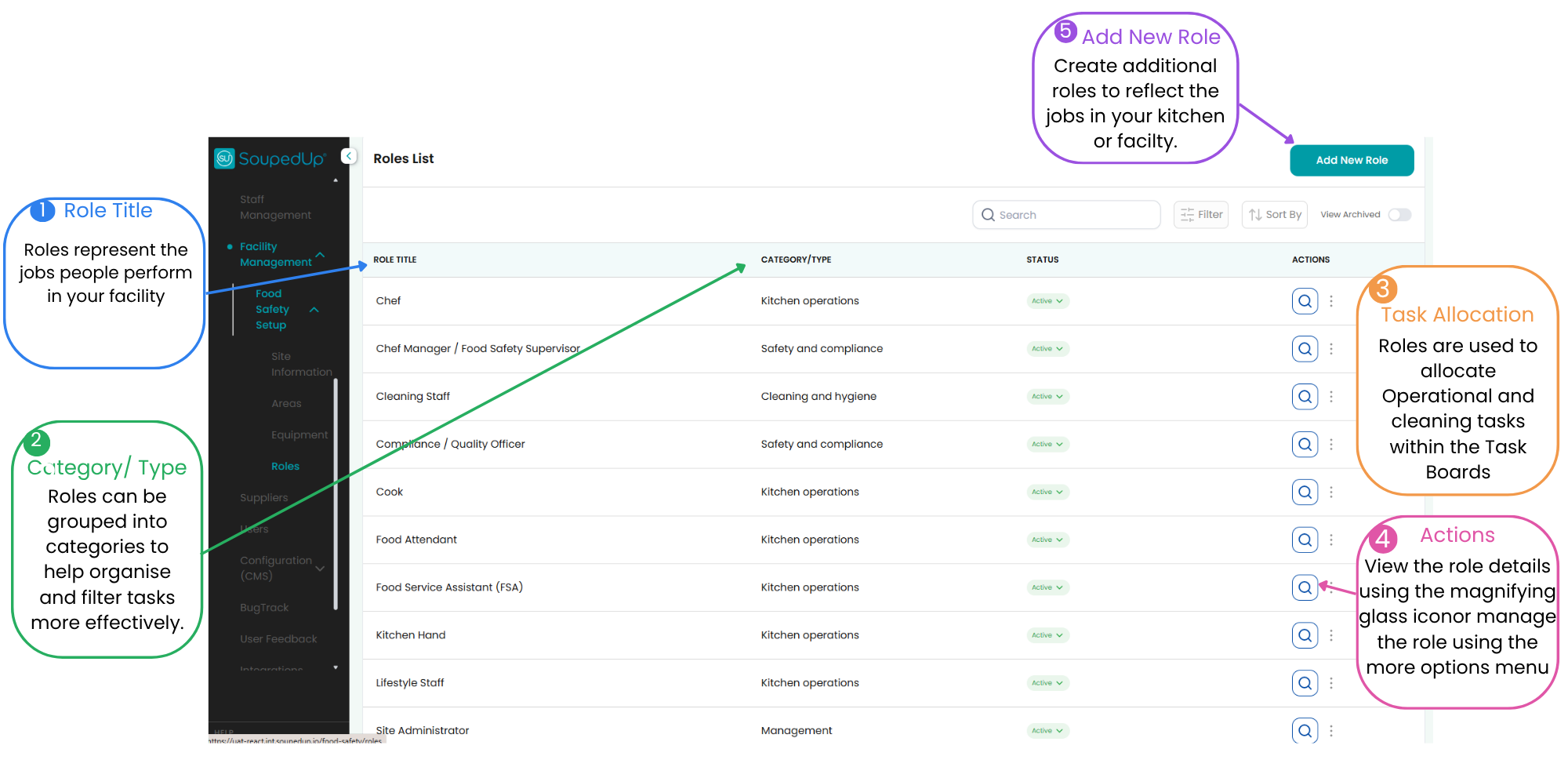
Explanation
Operational Roles identify the work a person performs.
Roles are created during Food Safety Setup and are later assigned to Operational and Cleaning Tasks.
Examples include:
- Chef
- Cook
- Kitchen Hand
- Food Service Assistant
- Cleaning Staff
- Food Safety Supervisor
Screenshot 3 – Roles on the Task Board
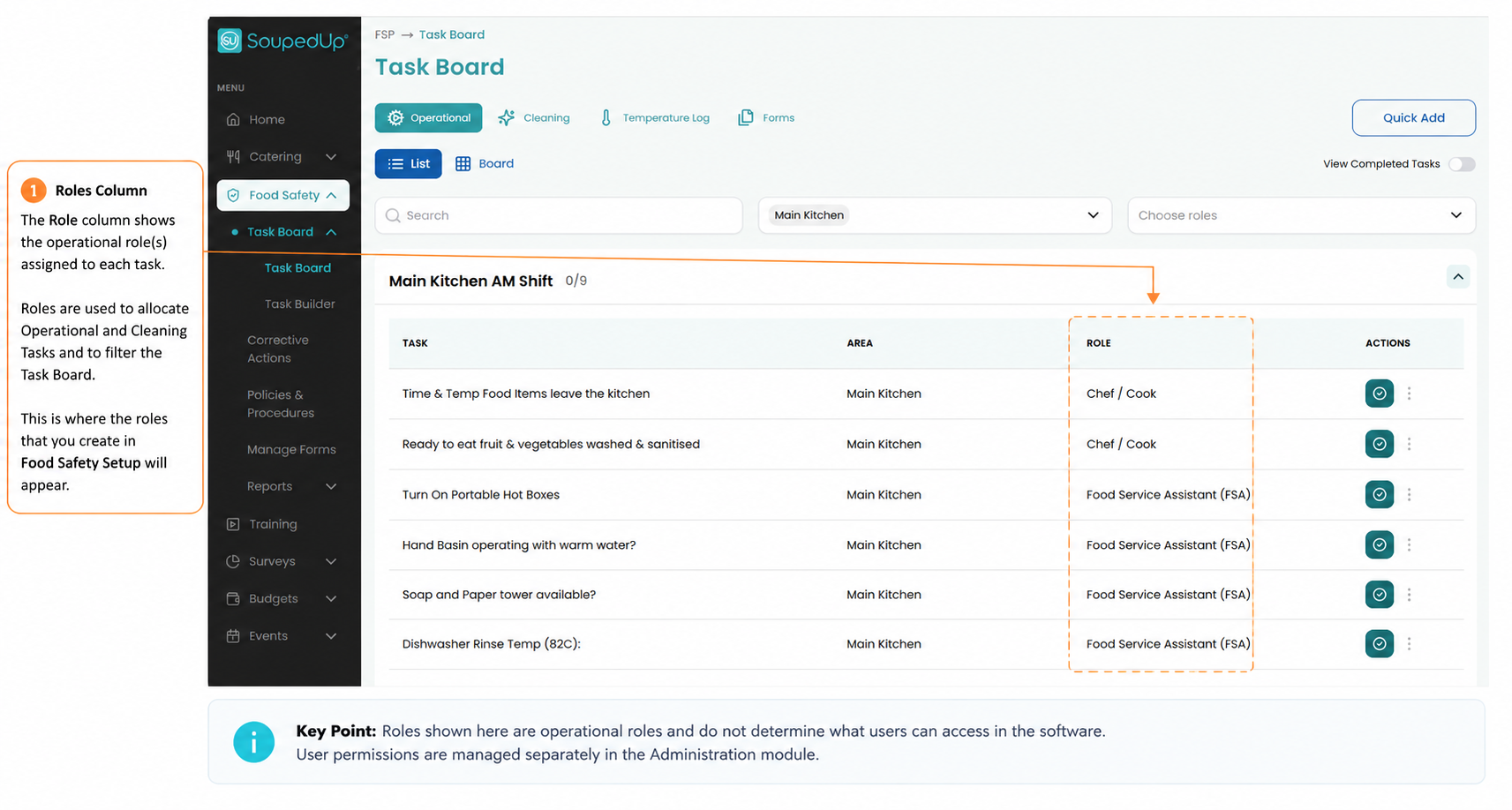
Explanation
Once assigned to tasks, Roles appear on the Task Board.
The Role column identifies who is responsible for completing each task and allows staff to filter the Task Board to display only tasks relevant to their operational role.
7. Step-by-Step Instructions
There are no setup steps required for this article.
This article provides background information to help you understand how Users and Roles work together before configuring the Food Safety Module.
To configure Users or Roles, refer to the related articles below.
8. Good to Know
- Every person using the Food Safety Module must have a User account.
- A User Type controls software access.
- Roles do not grant or remove permissions.
- A single User may perform multiple operational Roles.
- Office-based Site Administrators can administer the Food Safety Module without being assigned an operational role.
- Operational Roles are used to assign and filter Tasks throughout the Task Board.
9. Related Articles
Was this article helpful?
That’s Great!
Thank you for your feedback
Sorry! We couldn't be helpful
Thank you for your feedback
Feedback sent
We appreciate your effort and will try to fix the article