Who should use this article?
All Food Safety Program users.
Overview
The Task Board is the primary workspace used to complete daily Food Safety activities.
When Site Users access the Food Safety Program, they are automatically directed to the Task Board where they can view and complete assigned tasks, temperature logs and forms.
The Task Board is divided into four tabs:
- Operational
- Cleaning
- Temperature Log
- Forms
Users may need to switch between tabs throughout their shift to complete all assigned activities.
Understanding the Task Board
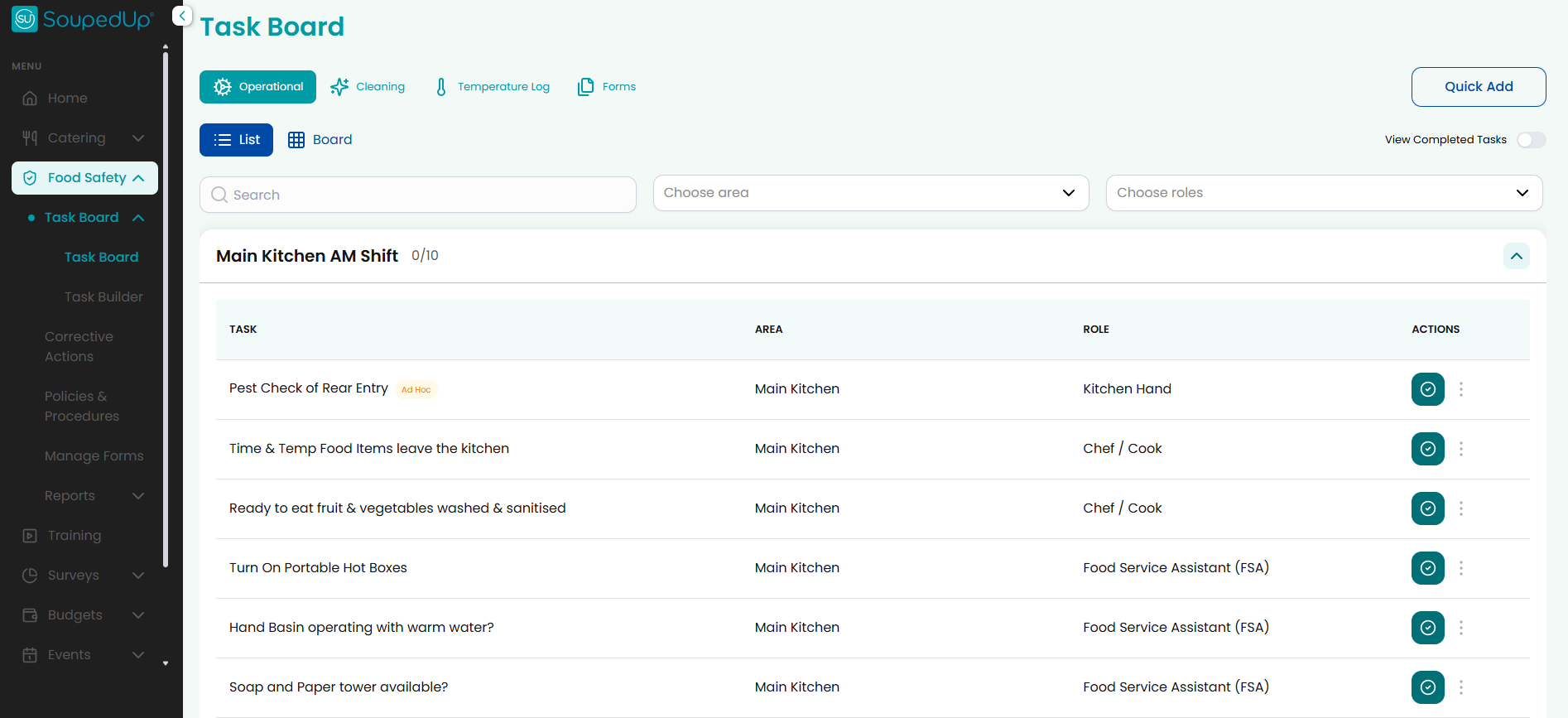
Key Features
| Feature | Description |
|---|---|
| Operational Tasks | View and action operational food safety and daily workflow tasks. |
| Cleaning Tasks | View and action cleaning and sanitation activities assigned to the site. |
| Temperature Log | View and action temperature monitoring records configured for the site. |
| Forms | Access Food Safety Forms assigned to your site. |
| Search | Search for specific tasks within the selected tab. |
| Area Filter | Filter tasks by Area. |
| Role Filter | Filter tasks by assigned Role. |
| View Completed Tasks | Show or hide completed tasks. |
| List View | Display tasks in a list format. |
| Board View | Display tasks in a tile format. |
| Quick Add | Quickly record activities without navigating away from the Task Board. |
Viewing Completed Tasks
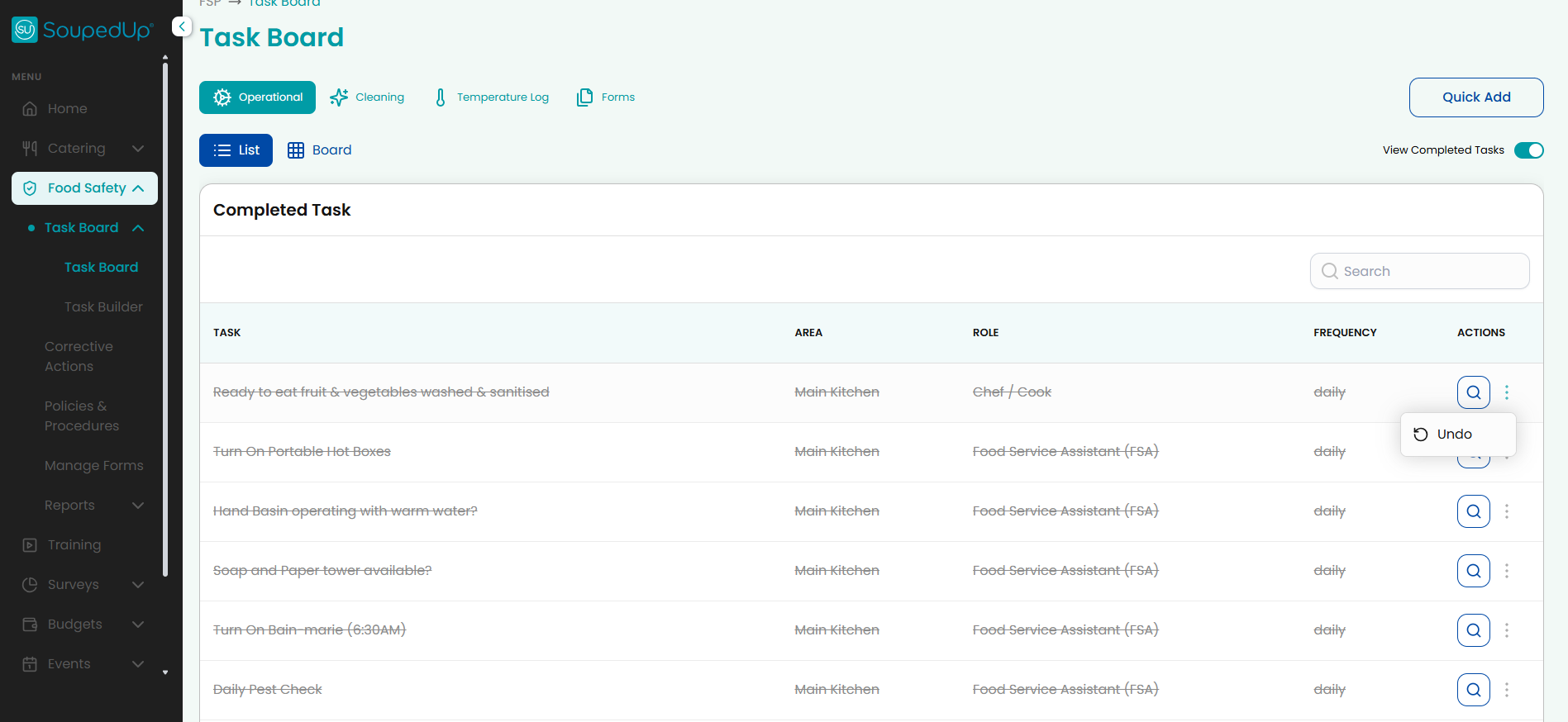
Completed tasks are hidden by default to help users focus on outstanding work.
To view completed tasks:
- Enable the View Completed Tasks toggle located in the top-right corner of the Task Board.
- Completed tasks will appear in a separate Completed Task section.
- Disable the toggle to return to the standard Task Board view.
Good to Know
- Completed tasks are displayed with a strikethrough to indicate they have already been completed.
- Completed tasks remain available for reporting and audit purposes.
- If a task has been completed accidentally, it can be reverted by viewing completed tasks, selecting the kebab menu (⋮) next to the task and choosing Undo.
- Turning the toggle off does not delete any records.
Operational Tasks
The Operational tab contains day-to-day food safety and operational checks.
Examples may include:
- Food labelling checks
- Hand basin checks
- Pest inspections
- Bain-Marie temperature checks
- Dishwasher rinse temperature checks
- Equipment checks
- Food handling activities
Operational Tasks help ensure daily food safety requirements are completed and recorded.
Cleaning Tasks
The Cleaning tab contains cleaning and sanitation activities assigned to the site.
Examples may include:
- High-touch surfaces
- Food preparation benches
- Handwashing facilities
- Refrigeration cleaning
- Equipment cleaning
- Storage area cleaning
Cleaning Tasks help ensure the facility remains clean, hygienic and audit ready.
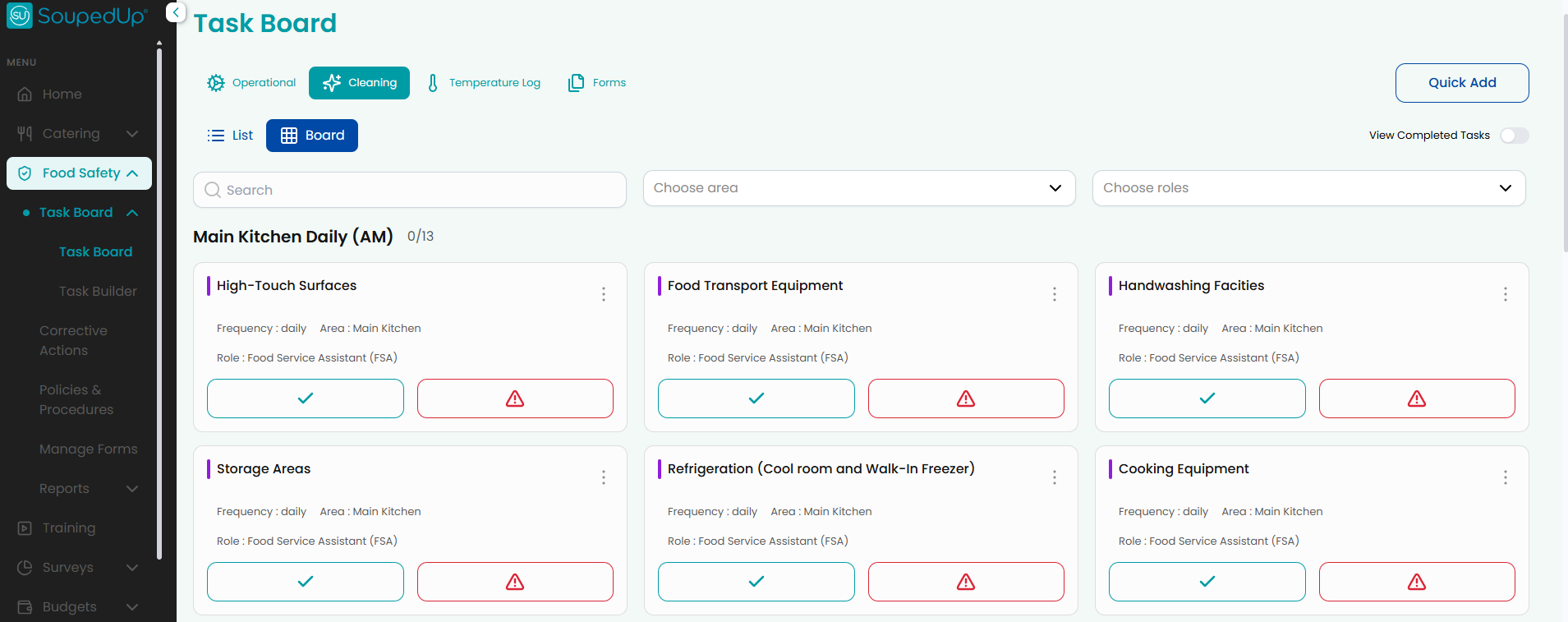
Note: Tasks can be viewed in either List View or Board View depending on user preference.
Temperature Log
The Temperature Log tab is used to record and monitor food safety temperature checks across the site.
Depending on your organisation's configuration, the Temperature Log may include:
Equipment Temperatures
- Fridges
- Freezers
- Cool Rooms
Meal Temperatures
- Hot meal service temperatures
- Cold meal service temperatures
Cold Preparation Logs
- Sandwich preparation
- Salad preparation
- Ready-to-eat food preparation
Cooling and Blast Chilling Logs
- Cooling cooked foods
- Blast chilling records
These logs help ensure food is stored, prepared, served and cooled within safe temperature ranges.
Important: Some operational temperature checks, such as Bain-Marie temperatures and dishwasher rinse temperatures, may be configured as Operational Tasks rather than Temperature Logs.
Forms
The Forms tab provides access to Food Safety Forms assigned to the site.
Forms may be used to capture operational, compliance or site-specific information.
Result
The Task Board provides a central location for completing Food Safety activities, temperature monitoring and forms.
Good to Know
- Tasks can be displayed in either List View or Board View.
- Completed tasks can be displayed by enabling the View Completed Tasks option.
- Tasks can be filtered by Area or Role to help users focus on the activities relevant to them.
- Users may need to switch between Operational, Cleaning, Temperature Log and Forms tabs throughout their shift.
- If a task has been completed accidentally, it can be reverted by viewing completed tasks, selecting the kebab menu (⋮) next to the task and choosing Undo.
Related Articles
Was this article helpful?
That’s Great!
Thank you for your feedback
Sorry! We couldn't be helpful
Thank you for your feedback
Feedback sent
We appreciate your effort and will try to fix the article