Who Should Use This Article?
This article is intended for all users who access forms within the Food Safety Program, including:
- Food Service Assistants
- Kitchen Hands
- Chefs and Cooks
- Food Safety Supervisors
- Site Managers
- Site Administrators
Overview
The Forms tab within the Task Board provides access to both Digital Forms and Printable Forms used to support food safety, operational and compliance record keeping.
Forms may be created at either Site level or Head Office level and can be used to capture information such as:
- Goods receival records
- Staff illness records
- Recall records
- Cleaning records
- Operational records
- Other organisation-specific records
The information displayed and the fields available will vary depending on the purpose of the form.
Accessing Forms
- Navigate to Food Safety → Task Board.
- Select the Forms tab.
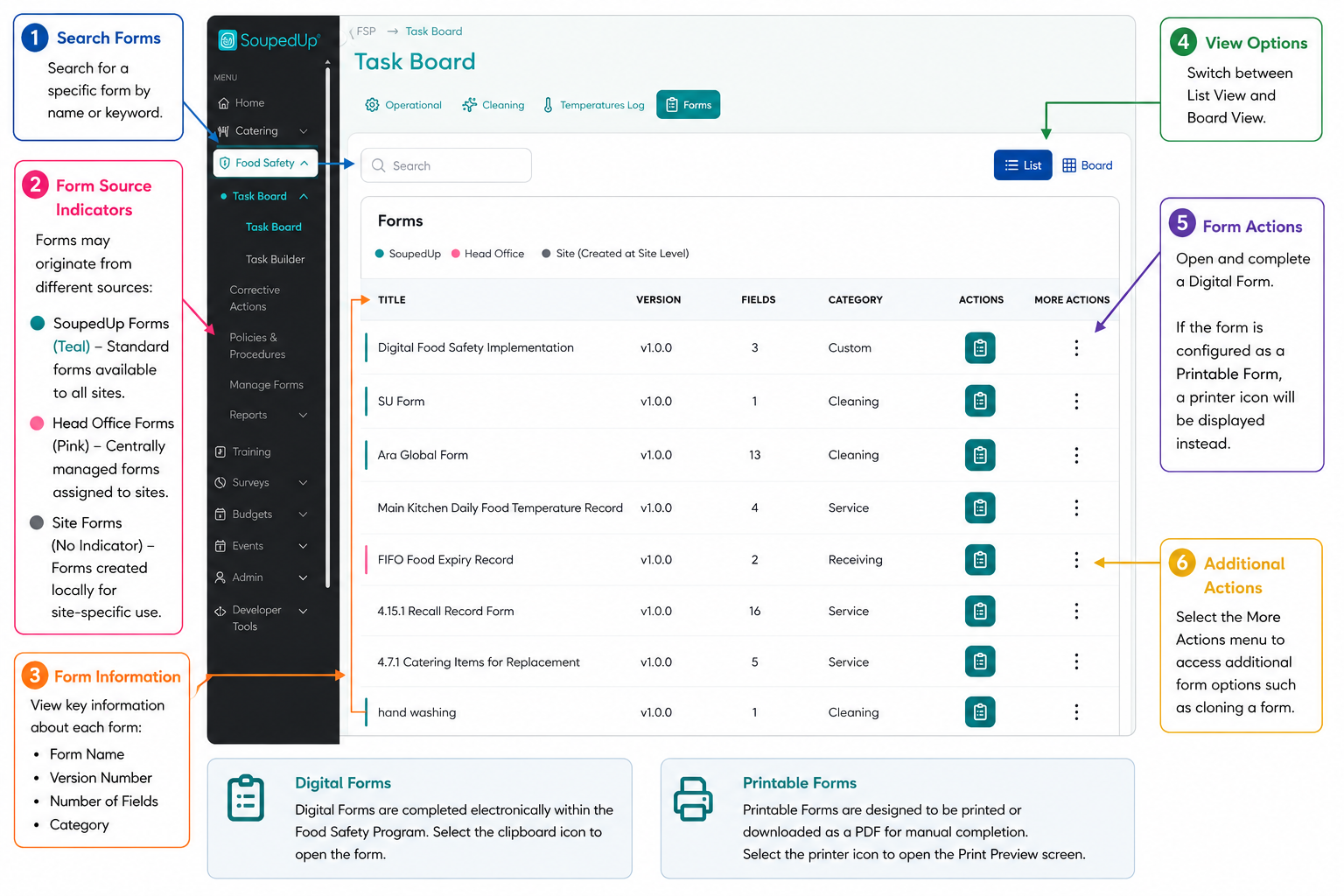
The Forms tab displays all forms available to your site.
Identifying Printable Forms
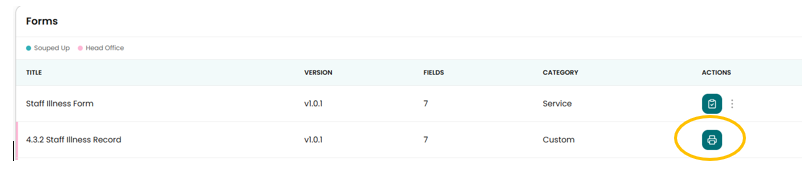
Some forms may be configured as Printable Forms.
Printable Forms display a printer icon instead of a clipboard icon.
Understanding the Forms List View
The List View provides a summary of available forms and key information about each form.
The screen displays:
- Form Name
- Version Number
- Number of Fields
- Form Category
- Available Actions
Forms can be searched using the Search box located at the top of the screen.
Understanding Form Types
There are two types of forms available within the Food Safety Program:
Digital Forms
Digital Forms are completed directly within the system.
These forms are identified by the clipboard icon.
Selecting the clipboard icon opens the form for completion and submission.
Printable Forms
Printable Forms are designed to be printed or downloaded as a PDF for manual completion.
These forms are identified by the printer icon.
Selecting the printer icon opens the Print Preview screen.
Understanding Form Sources
Forms displayed within the Food Safety Program may originate from different sources.
SoupedUp Forms
SoupedUp Forms are standard forms supplied by SoupedUp and available to all sites.
These forms can be used as provided or cloned to create organisation-specific versions.
Head Office Forms
Head Office Forms are created and managed centrally by your organisation.
These forms can be assigned to one or more sites.
Sites can use these forms and create cloned copies where local variations are required. The original Head Office form remains centrally controlled.
Site Forms
Site Forms are created locally to support site-specific operational requirements.
These forms are visible to the creating site and Head Office users.
Understanding Version Numbers
All forms display a version number.
Version numbers assist with document control and help users confirm they are accessing the current version of a form.
Version information is displayed within both the Forms List View and when a form is opened.
Understanding Digital Forms
Digital Forms are completed electronically within the Food Safety Program.
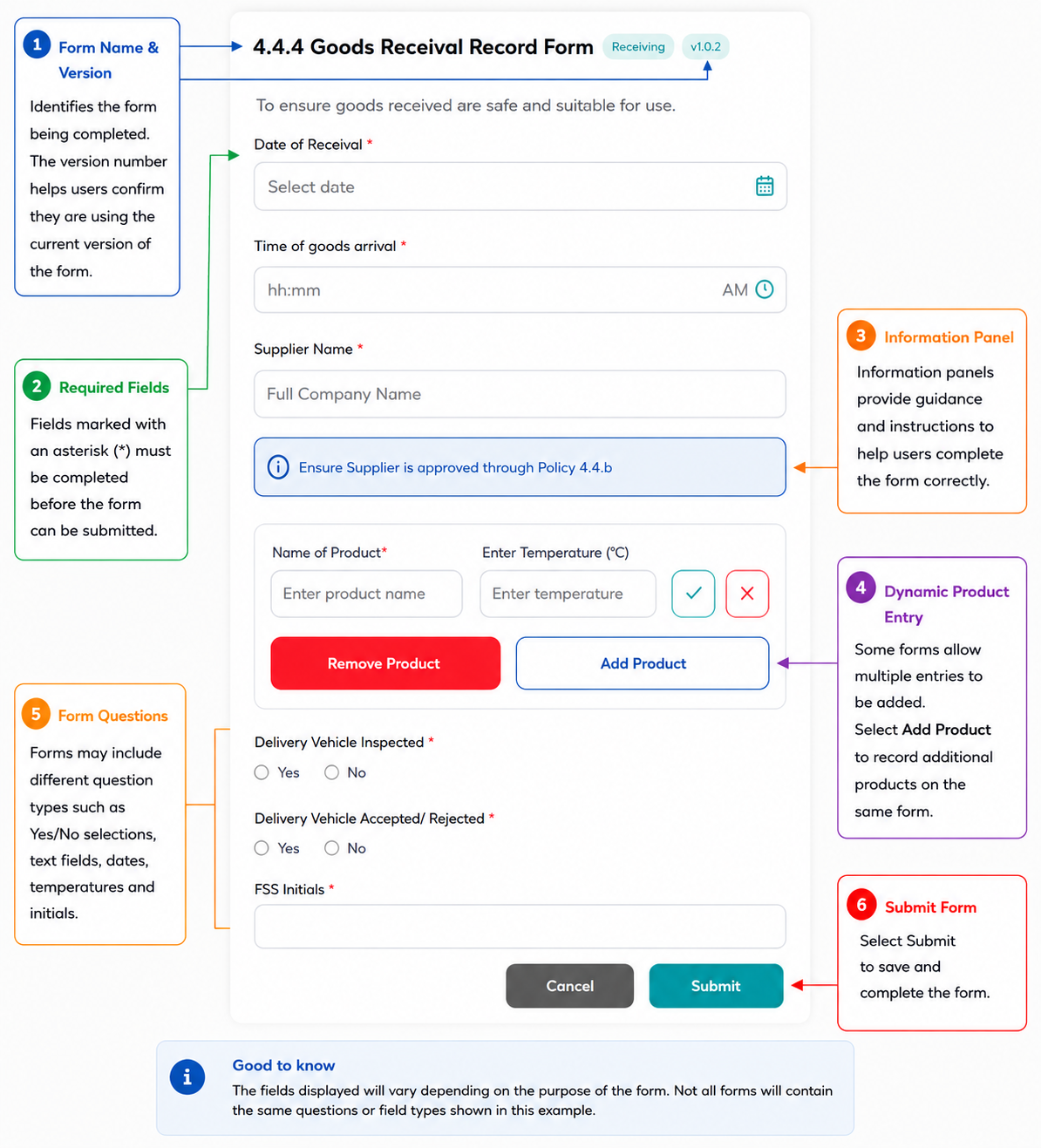
Depending on the form configuration, Digital Forms may include:
- Date fields
- Time fields
- Text fields
- Yes/No questions
- Temperature fields
- Initial fields
- Information panels
- Multiple-entry sections
The fields displayed will vary depending on the purpose of the form.
Once completed, the form can be submitted directly through the system.
Understanding Printable Forms
Printable Forms are designed for organisations that require paper-based records.
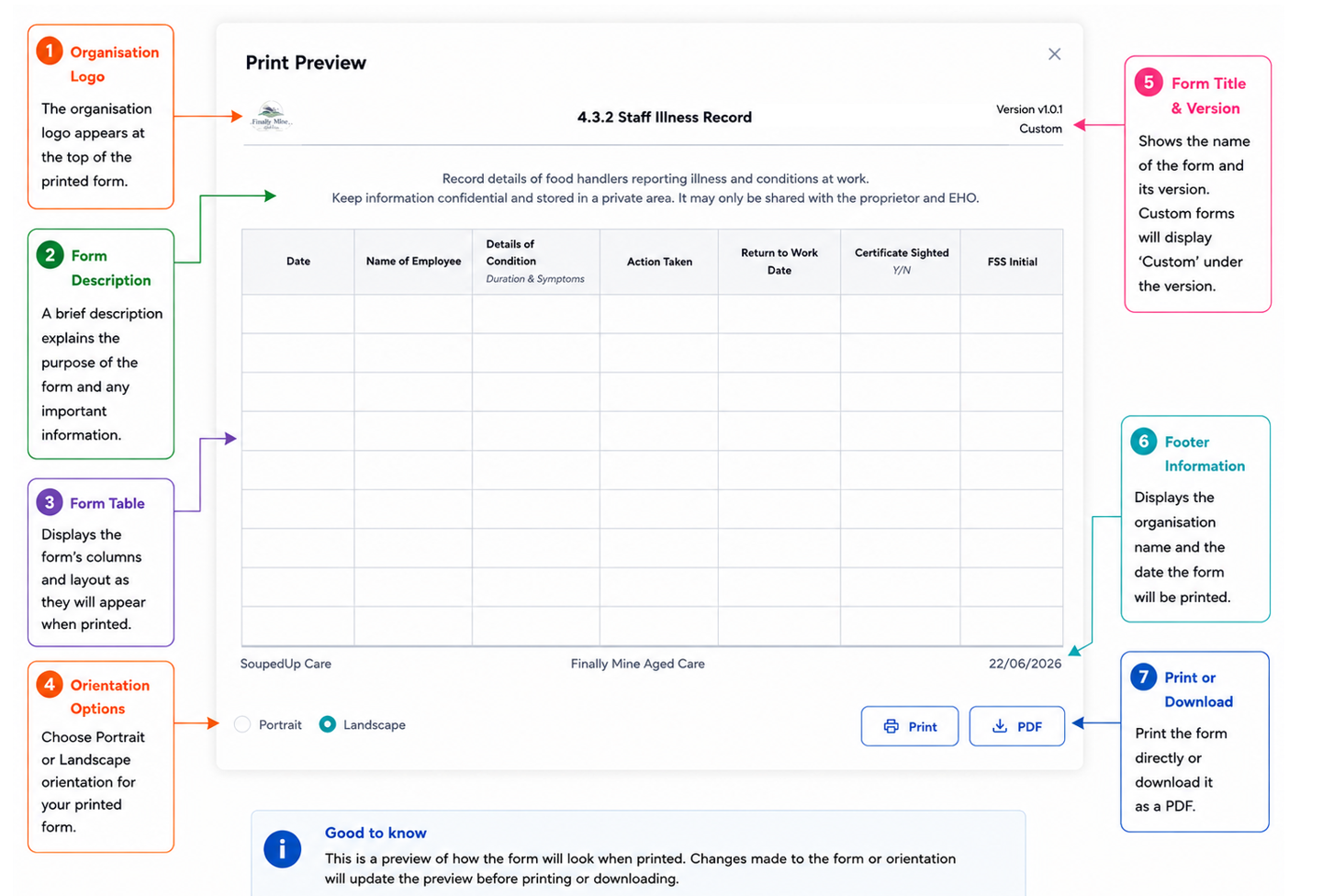
Printable Forms can be:
- Printed directly
- Downloaded as a PDF
- Completed manually
Printable Forms display a preview of how the form will appear when printed.
Users can select either Portrait or Landscape orientation before printing or downloading.
Viewing Forms in Board View
Forms can be viewed using either:
- List View
- Board View
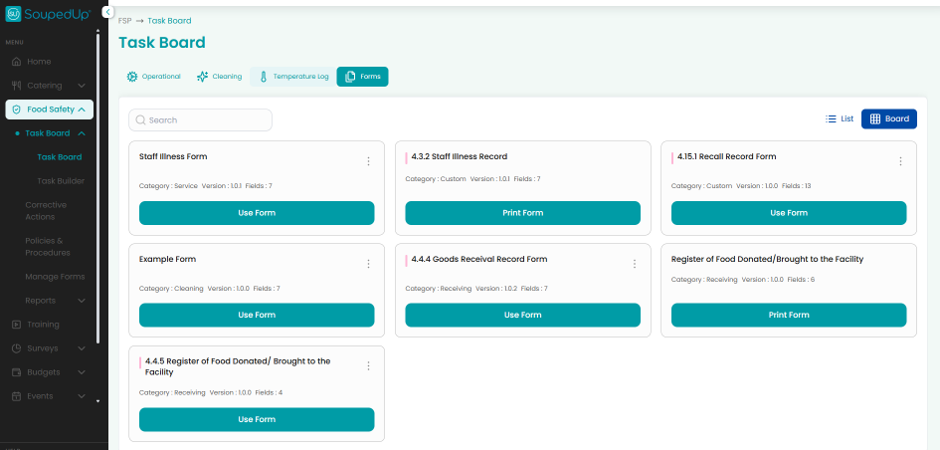
Board View provides an alternative card-based layout that may make forms easier to locate and browse.
Both views provide access to the same forms.
Result
Users can locate available forms, identify whether a form is Digital or Printable, understand version information and open the appropriate form for completion or printing.
Good to Know
- Forms may originate from SoupedUp, Head Office or Site level.
- Digital Forms are identified by the clipboard icon.
- Printable Forms are identified by the printer icon.
- Head Office Forms can be assigned to multiple sites.
- Sites can clone assigned Head Office Forms to create site-specific versions.
- Version numbers assist with document control.
- Forms can be viewed in either List View or Board View.
Related Articles
- Completing a Digital Form in the Task Board
- Viewing and Printing a Printable Form in the Task Board
- Understanding how to Manage Forms
- Creating a Printable Form
- Creating a Digital Form
Was this article helpful?
That’s Great!
Thank you for your feedback
Sorry! We couldn't be helpful
Thank you for your feedback
Feedback sent
We appreciate your effort and will try to fix the article