Who Should Use This Article?
This article is intended for users who need to view, print or download Printable Forms within the Food Safety Program, including:
- Food Service Assistants
- Kitchen Hands
- Chefs and Cooks
- Food Safety Supervisors
- Site Managers
- Site Administrators
Overview
Printable Forms provide paper-based records that can be printed or downloaded for manual completion.
Printable Forms are accessed through the Forms tab within the Task Board and can be identified by the printer icon.
Printable Forms may be used for records such as:
- Staff illness records
- Recall records
- Goods receival records
- Operational records
- Other organisation-specific records
The information displayed within each Printable Form will vary depending on the purpose of the form.
Accessing a Printable Form
- Navigate to Food Safety → Task Board.
- Select the Forms tab.
- Locate the required form.
- Select the printer icon.
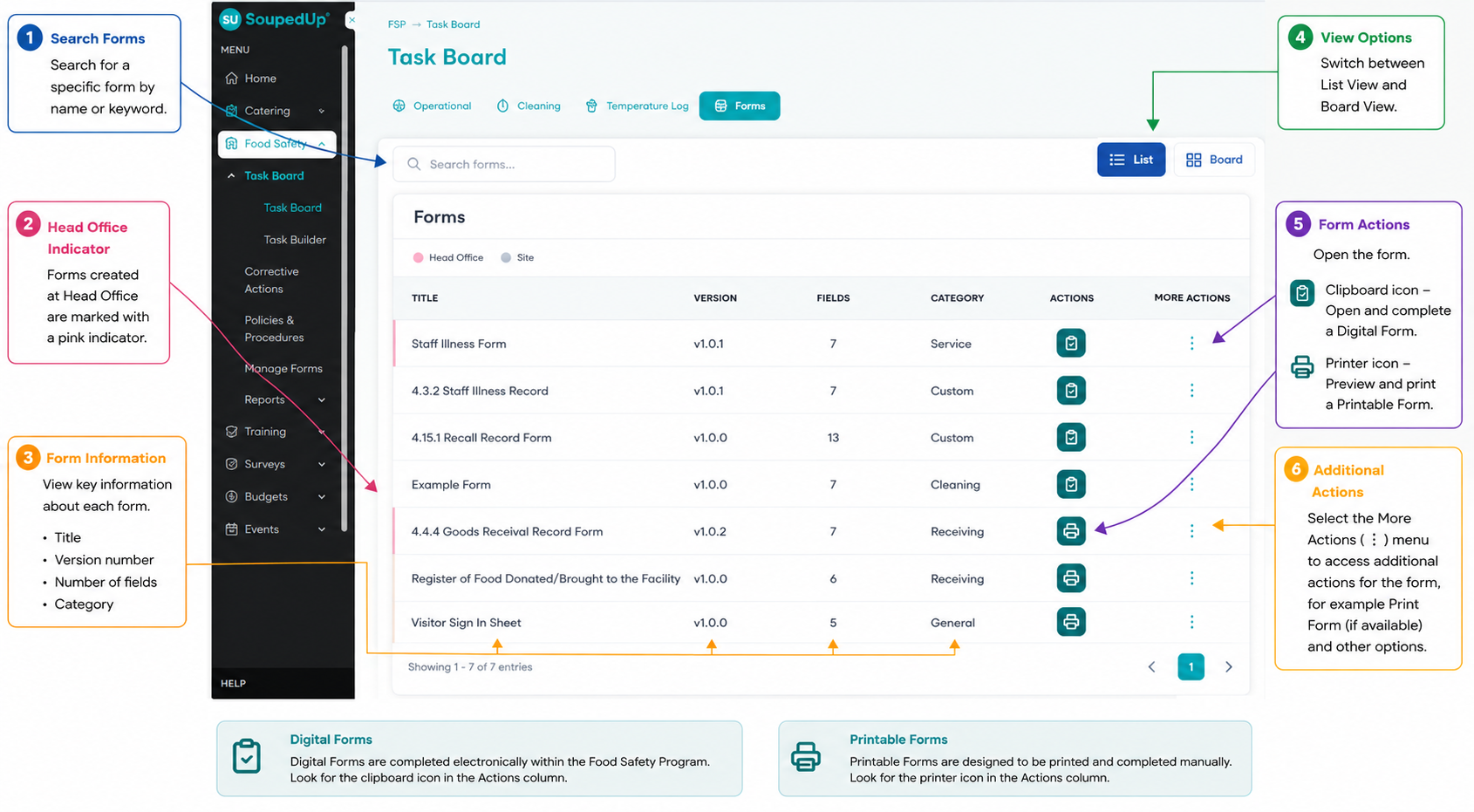
The printer icon identifies a Printable Form.
Understanding the Print Preview Screen
Selecting the printer icon opens the Print Preview screen.
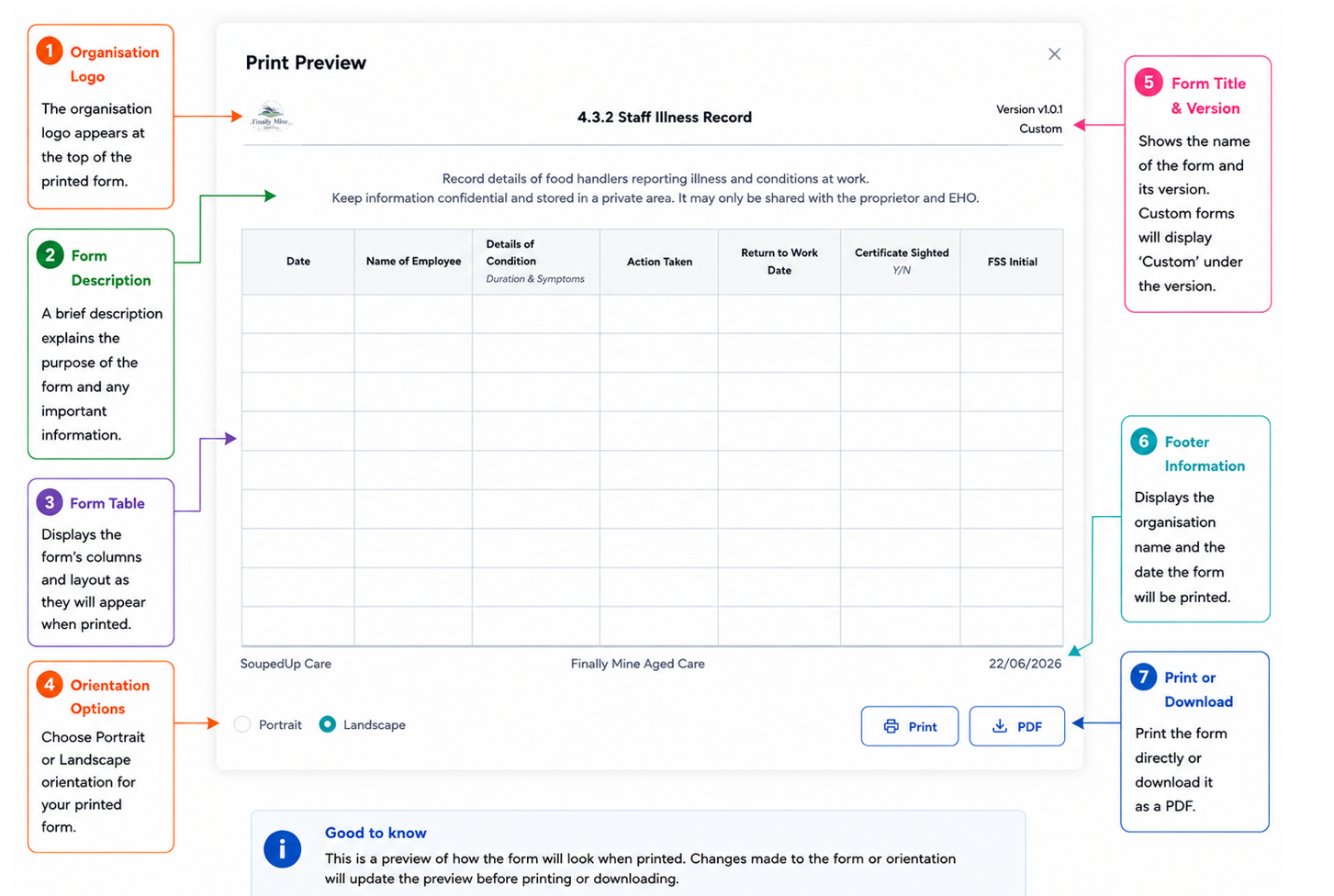
The Print Preview screen displays the form as it will appear when printed or downloaded.
The preview may include:
- Organisation logo
- Form title
- Version number
- Form description
- Form fields or table layout
- Footer information
The layout displayed will vary depending on the form configuration.
Understanding Version Information
Printable Forms display version information at the top of the form.
Version numbers assist with document control and help users confirm they are accessing the current version of the form.
Understanding the Form Layout
The centre section of the Print Preview displays the printable form layout.
The columns, fields and instructions displayed will vary depending on the purpose of the form.
For example, a Staff Illness Record will display different information to a Recall Record or Goods Receival Record.
Selecting Page Orientation
Printable Forms can be viewed in either:
- Portrait
- Landscape
Select the preferred orientation before printing or downloading the form.
The preview updates to reflect the selected layout.
Printing a Form
To print a Printable Form:
- Open the Print Preview screen.
- Select the required orientation.
- Select Print.
The form will open using your device's printing options.
Downloading a PDF Copy
To download a PDF version of the form:
- Open the Print Preview screen.
- Select the required orientation.
- Select PDF.
The form will be downloaded as a PDF document.
Result
The Printable Form has been viewed and can be printed or downloaded for manual completion.
Good to Know
- Printable Forms are identified by the printer icon.
- Printable Forms display version information.
- The layout and fields displayed will vary depending on the purpose of the form.
- Printable Forms can be viewed in either Portrait or Landscape orientation.
- Printable Forms can be printed directly or downloaded as a PDF.
- Print Preview displays the form as it will appear when printed.
Related Articles
- Understanding Forms in the Task Board
- Completing a Digital Form in the Task Board
- Understanding Form Submissions
- Understanding how to Manage Forms
- Creating a Printable Form
Was this article helpful?
That’s Great!
Thank you for your feedback
Sorry! We couldn't be helpful
Thank you for your feedback
Feedback sent
We appreciate your effort and will try to fix the article