Who Should Use This Article?
This article is intended for users who are responsible for completing and submitting Digital Forms within the Food Safety Program, including:
- Food Service Assistants
- Kitchen Hands
- Chefs and Cooks
- Food Safety Supervisors
- Site Managers
- Site Administrators
Overview
Digital Forms allow users to record operational, food safety and compliance information directly within the Food Safety Program.
The fields displayed within a Digital Form will vary depending on the purpose of the form. Examples may include goods receival records, staff illness records, incident reports and other organisation-specific forms.
Digital Forms are completed electronically and submitted directly through the system.
Accessing a Digital Form
- Navigate to Food Safety → Task Board.
- Select the Forms tab.
- Locate the required form.
- Select the clipboard icon.
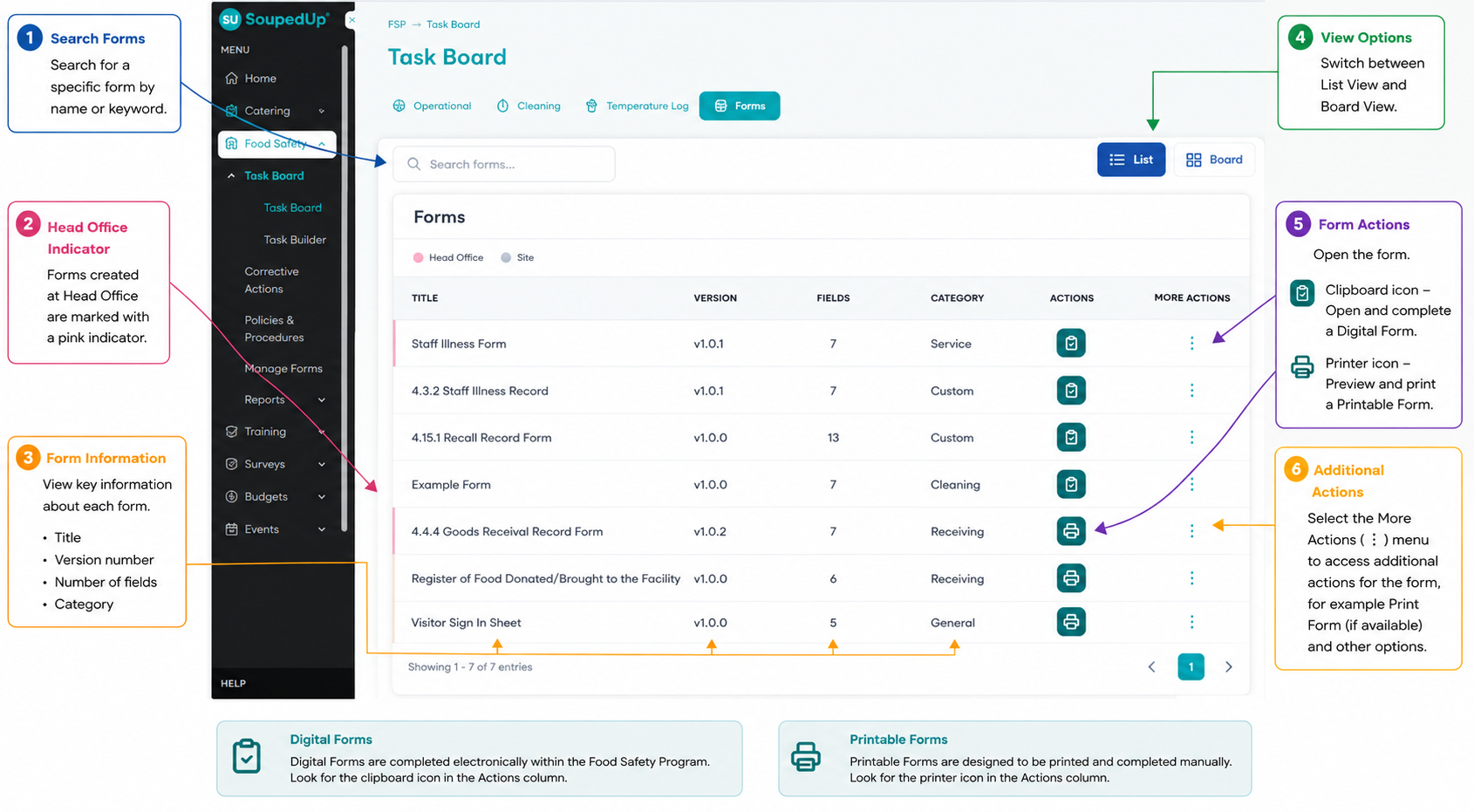 [Insert Screenshot 1 – Forms List View]
The clipboard icon identifies a Digital Form.
Understanding a Digital Form
Once opened, the Digital Form will display the fields and questions required to complete the record.
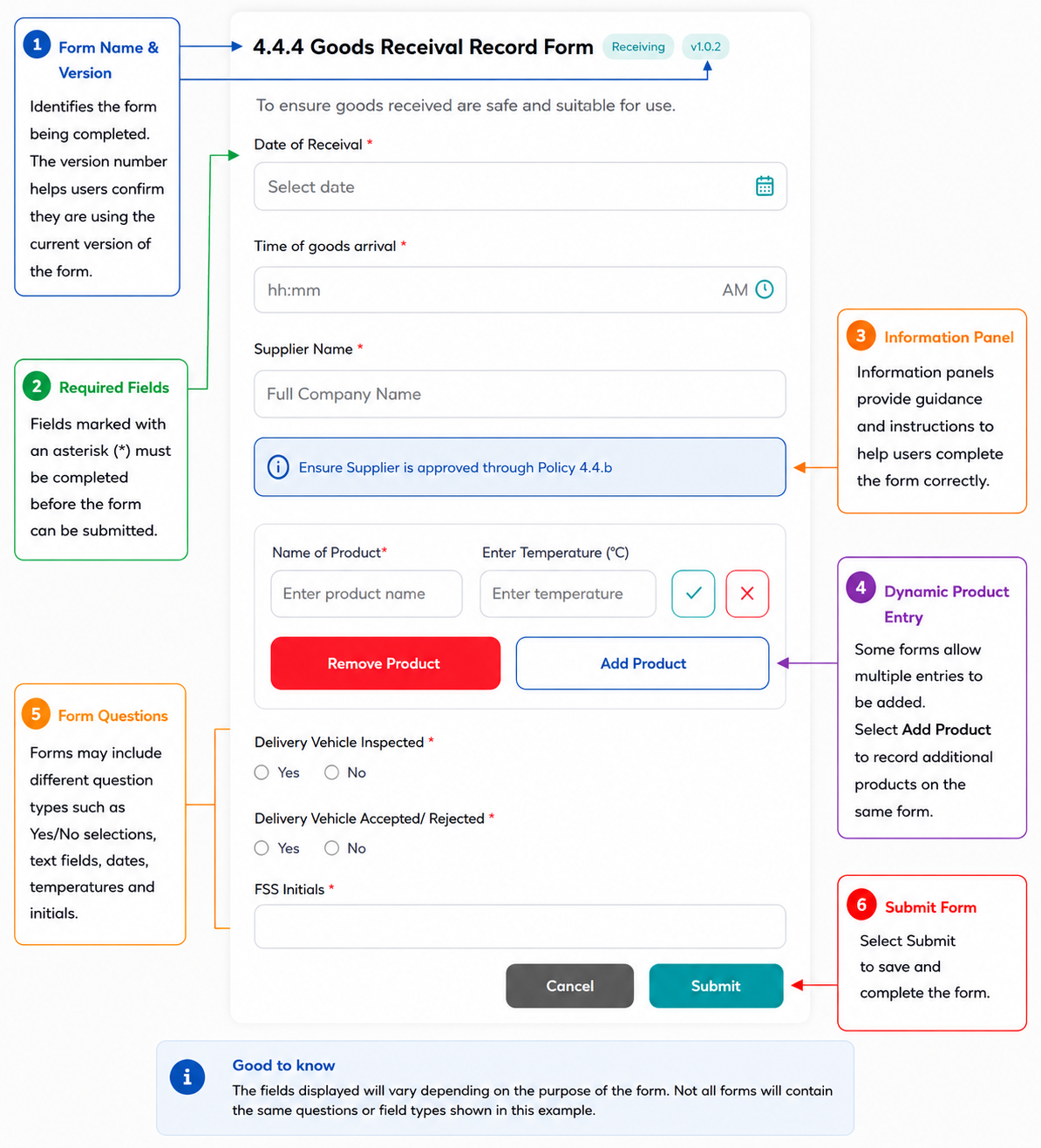
Depending on the form configuration, Digital Forms may include:
- Date fields
- Time fields
- Text fields
- Yes/No questions
- Initial fields
- Information panels
- Multiple-entry sections
The information displayed will vary depending on the purpose of the form.
Completing Required Fields
Fields marked with an asterisk (*) are mandatory and must be completed before the form can be submitted.
If a required field is not completed, the form may not be submitted successfully.
Using Information Panels
Some forms include information panels to provide guidance and instructions.
Information panels are designed to assist users when completing the form and should be reviewed before entering information.
Adding Multiple Entries
Some Digital Forms allow multiple records to be captured within the same form.
Where available, select the relevant Add button to create additional entries.
The number and type of entries available will depend on the form configuration.
Completing Form Questions
Digital Forms may contain different field types depending on the information being collected.
Examples may include:
- Text responses
- Date selections
- Time selections
- Yes/No responses
- Initial fields
Complete all required questions before submitting the form.
Submitting a Digital Form
Once all required information has been entered:
- Review the information entered.
- Select Submit.
The form will be recorded within the Food Safety Program.
Printing a Digital Form
Some Digital Forms may provide a printable version through the Additional Actions menu.
Where available:
- Select the kebab menu (⋮).
- Select Print Form.
The printable version of the form will open.
Note: Print availability may vary depending on the form configuration.
Result
The Digital Form has been completed and submitted within the Food Safety Program.
Good to Know
- Digital Forms are identified by the clipboard icon.
- The fields displayed will vary depending on the purpose of the form.
- Fields marked with an asterisk (*) are mandatory.
- Information panels provide guidance and instructions for completing the form.
- Some forms allow multiple entries to be recorded within a single submission.
- Some Digital Forms may provide a printable version through the Additional Actions menu.
Related Articles
- Understanding Forms in the Task Board
- Viewing and Printing a Printable Form in the Task Board
- Understanding how to Manage Forms
- Creating a Printable Form
- Creating a Digital Form
Was this article helpful?
That’s Great!
Thank you for your feedback
Sorry! We couldn't be helpful
Thank you for your feedback
Feedback sent
We appreciate your effort and will try to fix the article